








Project View
You may configure your project's properties by selecting the project node in the device tree. This view also lets you add devices to your project.

| Section | Item | Description |
|---|---|---|
|
General |
Project Name |
A read-only field that displays the name of the project, which is the file name without the extension. By default this is called "Project", as soon as you save your project it will reflect the file name. |
|
Project File Path |
A read-only field that indicates the full file path of the project. Until the project is saved this field remains empty. |
|
|
Company Name |
Optional fields used to help identify the company and machine this project is developed for. |
|
|
Machine Type |
||
|
Safety |
Safety Features |
Configures which level of safety the project is targeted to.
|
|
Passwords for Advanced Safety |
After a password has been set, it may be changed after the project is re-opened and the password is entered successfully.
|
|
|
Devices |
Add Device |
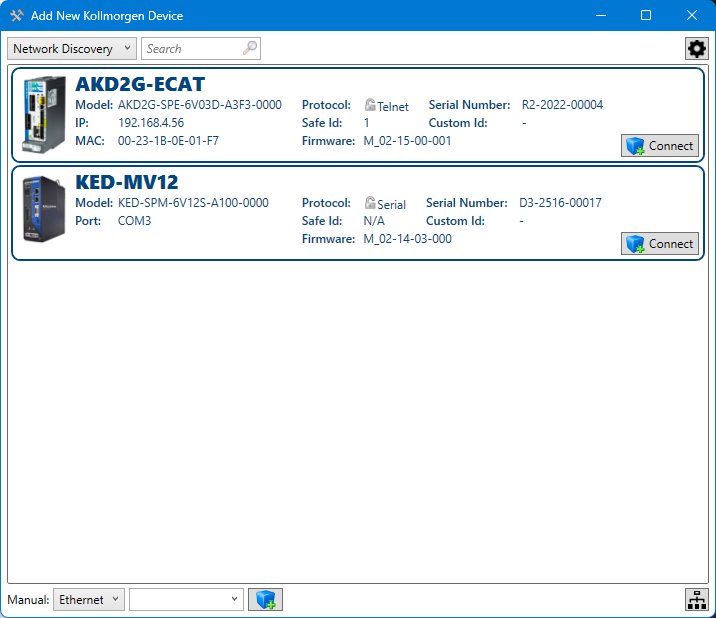
Selecting this button opens a window which by default shows all devices that are seen on the network or are connected via USB.
If the window is empty the controls at the bottom of the window allow you to select a network to connect to and search for your device. |
|
Add Simulated |
Selecting this button allows you to define the type of offline drive you wish to add (AKD, AKD2G, KED) and select the device's properties. See Adding an Offline Device for details. |
-
-
When using advanced safety:
- Defining at least the Full Configuration Password is mandatory.
- Be sure to remember the password, it will be asked when opening the project if you want to get full access. The password cannot be recovered.
- If you do not provide any password to a project with advanced safety, you will have read-only access to parameters, and no access to download and parameter set activation.
See Also:


