





Parameters Editor
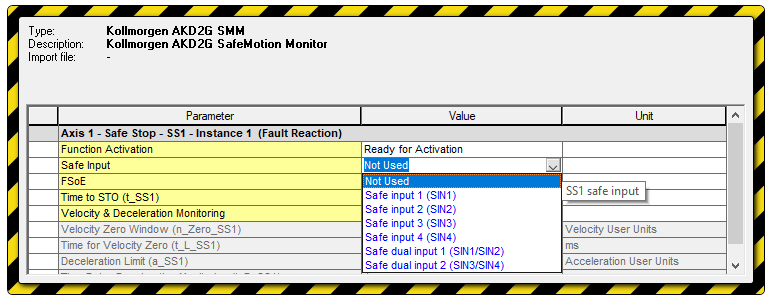
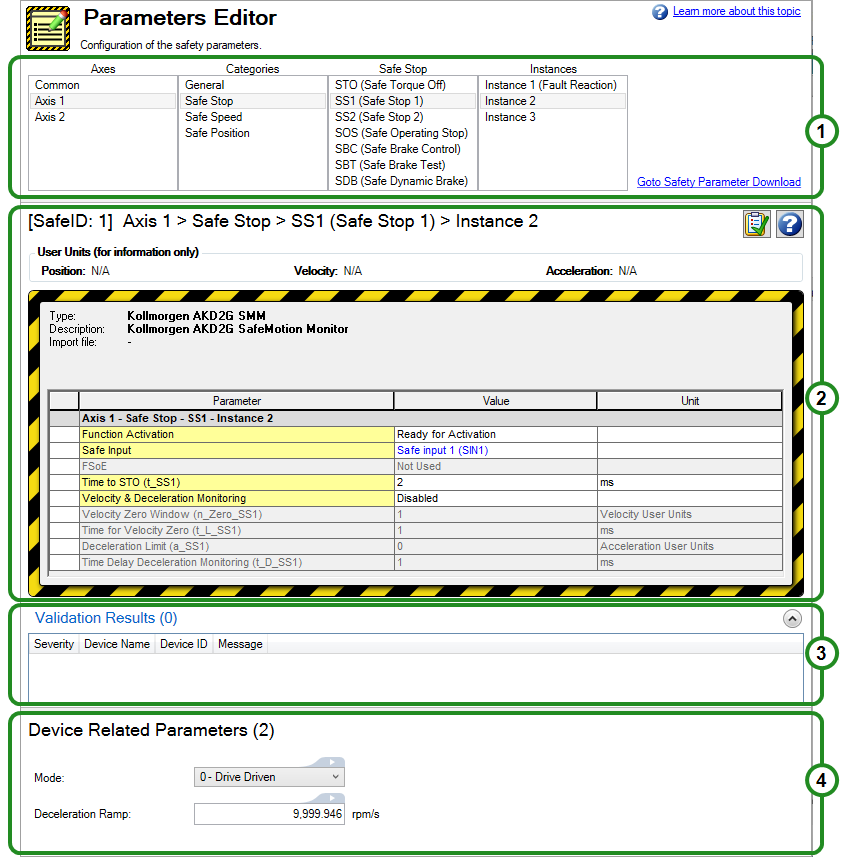
This view provides the ability to set up safety parameters. By navigating through and selecting the options at the top (Axes, Categories, etc.) you define the safety groups.
|
- Safety Manual for FS3
-
See also Parameters Editor in the WorkBench Safety Function Setup section of the AKD2G Installation Manual's Safety Manual for FS1 Safety Manual for FS2
General Instructions on Using the Parameters Editor
Use of the Parameters Editor begins with the table at the top of the view.
- Select the Axis to use the parameter, e.g. Axis 1.
Choosing Common or a specific axis number will result in different Categories being available.
- Select which of the safety Categories to define, e.g. Safe Stop.
Making a selection in Categories provides a refined selection, focused on that category's functions.
- Select the safety parameter, e.g. SS1 (Safe Stop 1).
Once the parameter is set, a fourth category, Instances may be available.
- Make a selection from the Instance, e.g. Instance 2.

- Click on the Validation button to run a plausibility check.

Any issues will be reported in the Validation Results. There are links in each issue which will open the configuration to fix the issue.

These steps define a fully configured safety parameter.
Parameters Editor Interface Description

 Clicking this button opens the help system on the topic documenting the current safety parameter.