Use the PLC Online Change
See PC Online Change for descriptions of the functionality.
Set an Application
- Create a new PLC application.
- Connect to a controller and scan for EtherCAT devices.
- Add logic and function blocks to the application.
- On the toolbar, click the
 button to compile the project.
Enable Online Change
- On the toolbar, click the
 button.
The Project Settings dialog box opens. (Figure 1) - Select the Online Line Change Enabled check box to update the PLC application while it is running on the controller.
- Click OK to save the changes or selections and close the dialog box.
- Compile the project .
- Connect
 and download
  the application to the device.
 - Start executing the application.

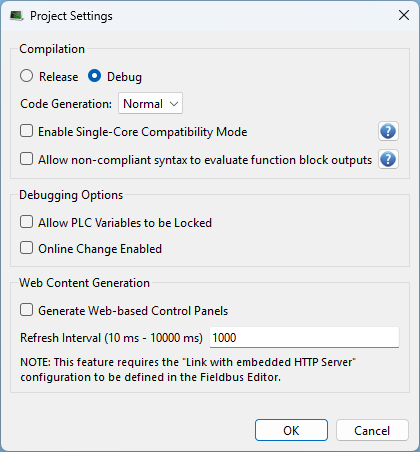
Figure 1: Project Settings dialog box
Use the Online Change
- Enable the Toggle Edit/Debug mode button in the tool bar.

The application variables are not updated even though the application is running. (Figure 2) - Modify a local or global variable name in the Dictionary. (Figure 3)
- Compile the project .
- Click the PLC Online Change download button
 on the tool bar to download the changes to the controller.
The status bar has changed from Running to Paused during the download and back to Running once the download has finished.
The applications variables are updating.

Figure 2: Online change, running and connected
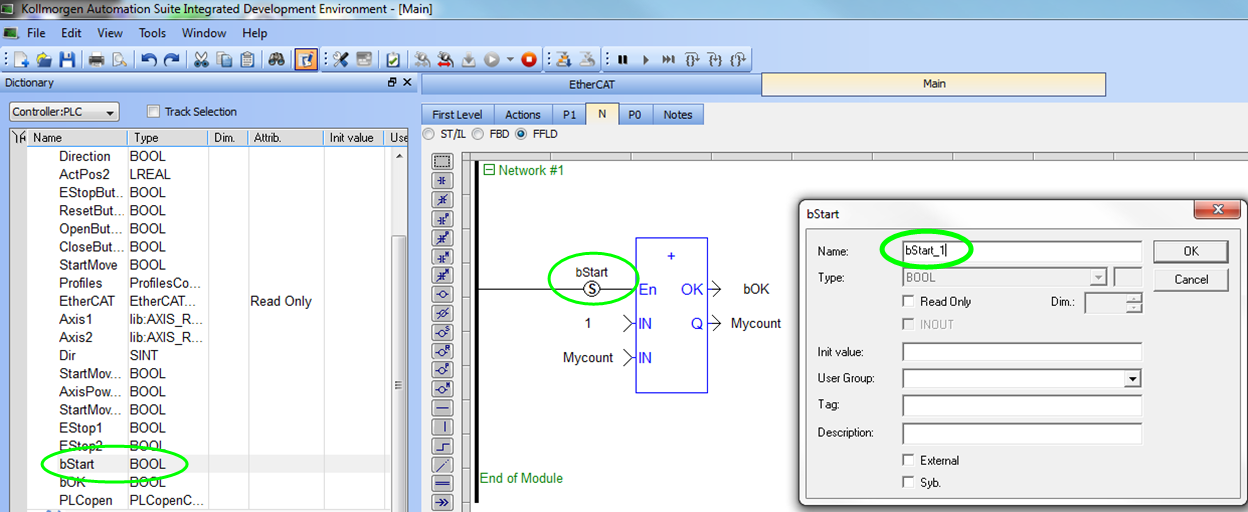
Figure 3: Change the name in the Dictionary
-
- If Online Change is disabled while the application is running, even temporarily, downloading will fail.
Revert the Online Change
- Click the PLC Online Change Revert button
 on the tool bar.
A message appears stating that revert was successful. - Note the reverted state of the application in the KAS-IDE. (Figure 4)
- Connect to the device.
- Note the state of the application and the device. (Figure 5)
- From this state, Online Change can only be used again after:
- Stopping the application.
- Making changes.
- Recompile.
- Download the application to the controller.




