Declare Functions or Function Blocks
- Expand the PLC node in the Project Explorer and right-click on the Subprograms item.
- Select the action to perform (i.e., New Function or New UDFB). (Figure 1)
- Enter the program name (e.g., MyFBD) and click OK.
The Program Properties dialog box opens. (Figure 3) - In either the Inputs or Outputs editable space, click the … to enable the Edit button.
Click the Edit button or double-clicking on the editable space.
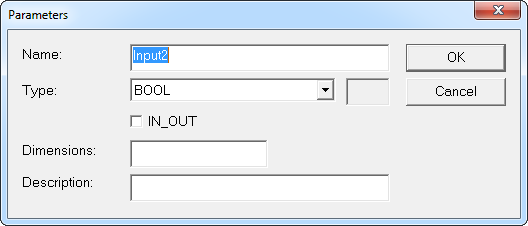
The Parameters dialog box opens. (Figure 4)
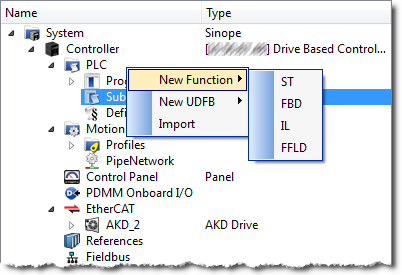
Figure 1: Subprogram > New Function
The New Program dialog box opens. (Figure 2)
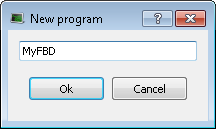
Figure 2: New Program dialog box
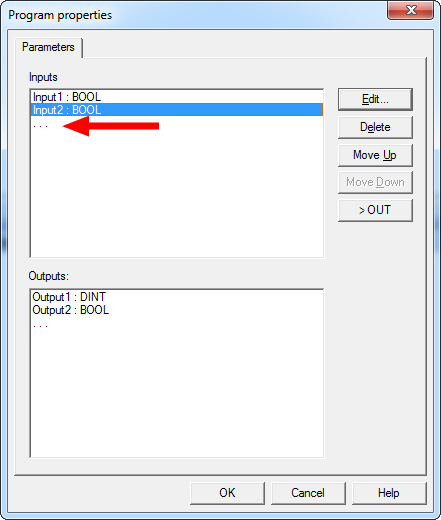
Figure 3: Program Properties dialog box
|
Item |
Description |
|---|---|
|
Edit |
Click this button to change the definition of the selected parameter. When the last line (...) of the list is selected, click this button to edit a new parameter. |
|
Delete |
Click this button to remove the selected parameter. |
|
Move Up/Down |
Click these buttons to move the selected parameter in the list to arrange the order of parameters. The order is very important because it defines the calling prototype of the UDFB or sub-program. |
|
Swap |
Click this button to move the selected parameter between the Inputs and Outputs lists. When an button is selected the button's text changes to show where the parameter is moved. |
-
-
New UDFBs are added to the (Project) node in the Library toolbox.


