Printable Elements
The elements that you can print are:
- All PLC programs (see PLC node in the Project Explorer).
- Individual programs.
- Level 2 SFC.
- Level 2 SFC of single transition/state.
- The Pipe Network editor.
- The Dictionary.
You can either print one specific program or all the project (PLC, Motion, Dictionary variables).
Page Setup
This dialog enables you to define the following settings:
Page Setup tab
- Orientation:
- Used to choose between portrait or landscape.
- Because the orientation can be set in both the page setup and the printer driver, it is recommended to have both settings synchronized.
- Scaling:
- Select the Fit to option to fit on the specified number of pages.
- You have to enter one of the two values (either Wide or Tall) and the other are filled in automatically to keep a 1:1 aspect ratio of the print.
-
-
These settings are not applicable when printing a project.
Margin and Header/Footer tab
If you specify new margins or header/footer for a program, it affects the entire project when printed.
- Special items can be inserted into the header/footer string as {@item}.
- They are converted to the correct format on printing or for print preview.
- About the Filename field:
- If an SFC level 2 program is being printed, the filename contains the SFC program name, Step or Transition number, and the action tab name (e.g., Main, GS3, P1).
-
-
All the settings defined in the Page Setup are saved in the project and are applied to each printed program.
This dialog box contains two buttons:
- Print... displays the Printer dialog box.
- Print Preview displays a printout on the screen to see how it looks like before printing it.
This dialog is used to:
- Set the output (a printer, a PDF).
- Set the output preferences to set-up the printer options.
- Look for a printer on the network.
- Set the number of copies.
- Set the page area to be printed.
- Start the print.
To print an SFC level 2 program, open it in the SFC editor and click the Print icon  <Ctrl + P>.
Print Preview
This dialog box is used to view a printout on the screen before printing.
Print the Project
A Print Project dialog lists all the items that are printable.
Select those items to include in the output and click OK.
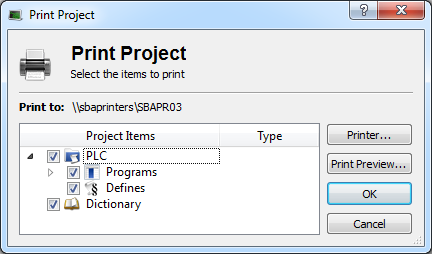
Figure 1: Print Project
-
-
Selecting an SFC program prints the SFC chart as well as SFC level 2 programs.
Automatic scaling is applied for best readability.


