Force a Variable
At runtime, all variables in the table widget are animated 1 with real-time values.
At runtime, double-click on the value of the variable in the list or press the ENTER key when it is selected.
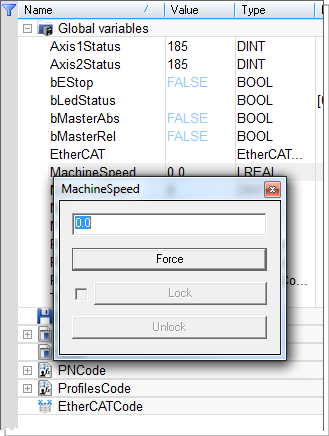
A popup window appears and allows you to Force, Lock, or Unlock a variable.
Force
- Change the value of the selected variable.
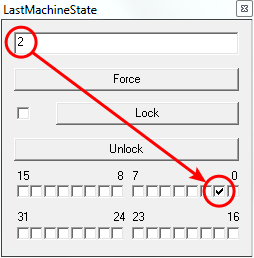
- Depending on the variable type, you have the possibility to define its value either in the text field or with the check boxes. (Figure 1)
Lock
- Variables, member variables of a structure and variables in an array may be locked.
- When a variable is locked, its value is no longer changed by the runtime.
- You can then force its value from the debugger independently from the runtime operations.
- All variables can be locked and forced at runtime.
-
-
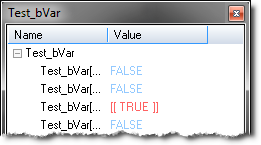
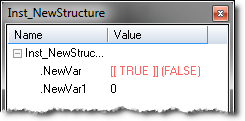
The value of a locked variable is displayed with square brackets. (Figure 2)

The variable locking feature can be enabled or disabled via the PLC Options device toolbar button.
If enabled, the Lock and Unlock buttons are accessible (Figure 4):
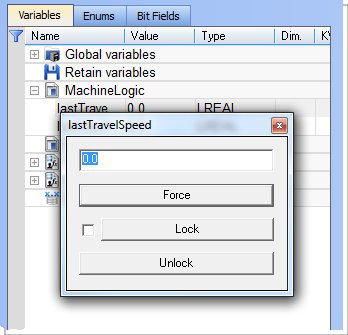
If disabled (default), the Lock and Unlock buttons are not accessible (Figure 3):
-
-
If PLC variable locking is enabled, the controller Runtime requires an additional 3% to 10% CPU processing power to manage the PLC variable locking.
For the best controller performance, disable PLC variable locking.
Unlock
- Remove the lock on a variable so that it can be changed again by the runtime.


