OPC UA - Insert Variable dialog box
Usage
The Insert Variable (???) dialog box is used to define a variable for a data group.
Access
 Click to view access to the dialog box
- In the Fieldbus Editor tree, select the OPC UA Server data group to assign a new variable to.
The Insert Variable button in the vertical toolbar is activated. (Figure 1) - On the vertical toolbar, click the Insert Variable button (
 ).
).
The Insert Variable (???) dialog box opens. (Figure 2)
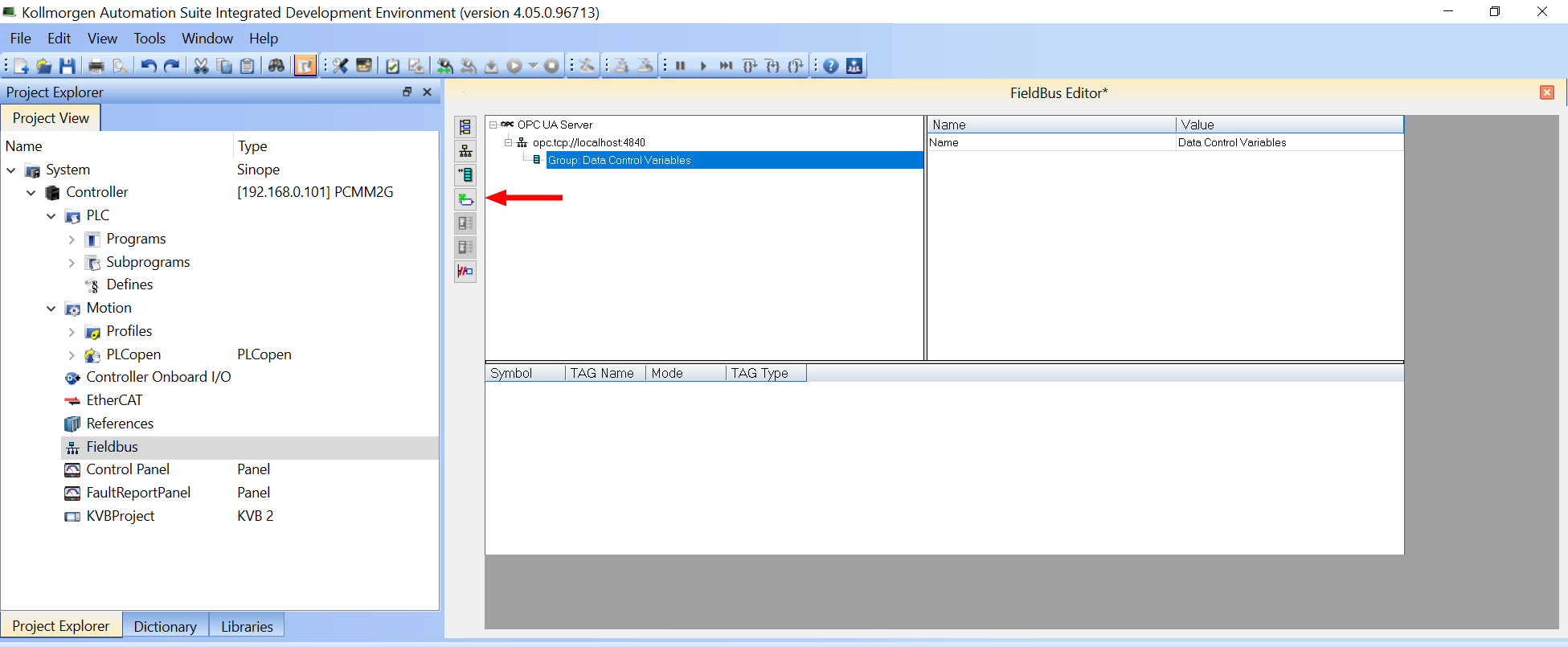
Figure 1: Insert Variable button
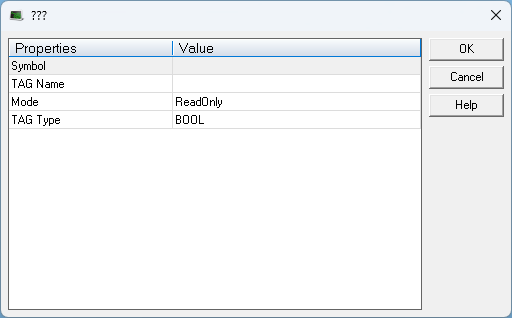
Dialog box Description
|
Section |
Element |
Description |
||
|---|---|---|---|---|
|
Properties column |
|
The Properties column lists the properties to define for this variable. |
||
|
Value column |
|
The Value column shows the entered Name of the variable. |
||
|
Symbol row |
Variables combo-box |
|
||
|
TAG Name row |
TAG Name - Value text box |
In the TAG Name - Value text box, enter the name used by the OPC UA client to address the variable. |
||
|
Mode row |
Mode - Value list box |
The options are:
|
||
|
TAG Type row |
TAG Type - Value list box |
The options are:
|
||
|
|
Default button |
Click Default to reset all changes or selections back to the default settings. |
||
|
|
OK button |
Click OK to save the changes or selections and close the dialog box. |
||
|
|
Cancel button |
Click Cancel to discard all changes or selections and close the dialog box. |


