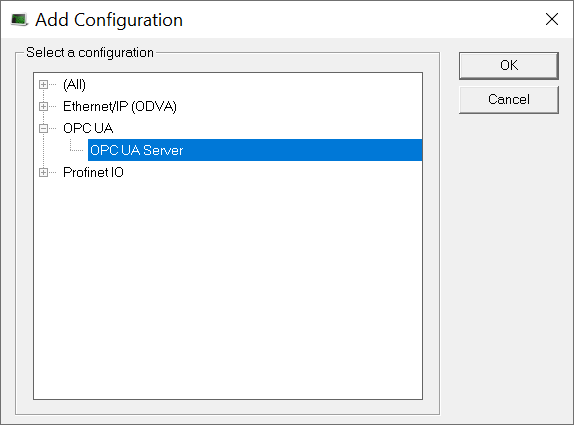
OPC UA - Server dialog box

Usage

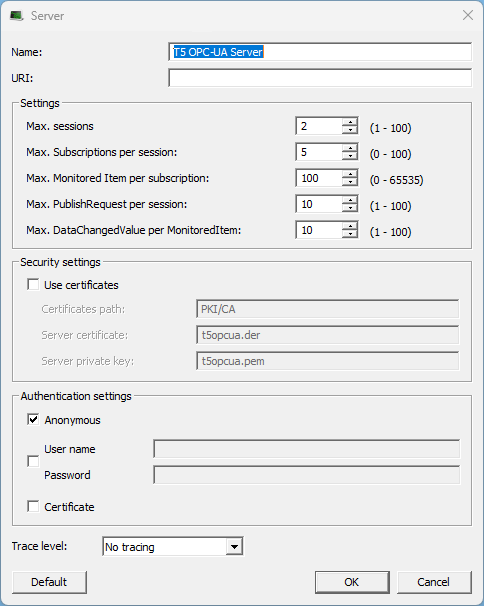
The Server dialog box is used to define the application settings for the OPC UA Server.

Access

Dialog box Description

Section

Element

Description


Name text box

  • In the Name text box, enter a name for this specific server configuration.
  • This Name is used to distinguish the server instance.
  • The server is identified via this name.
  • The default is T5 OPC UA Server.


URI text box

  • In the URI text box, enter the URL used for the certificate authentication.
  • It must be the same URL as the URL used in the Subject Alternative Name of the server certificate.

Settings section

Max. Sessions spin box

  • In the Max. Sessions spin box, enter the maximum number of simultaneously connected OPC UA client sessions.
  • The range is 1 to 100.
  • The default is 2.


Max. Subscriptions per session spin box

  • In the Max. Subscriptions per session spin box, enter the maximum number of subscription groups a client can create per session.
  • The range is 1 to 100.
  • The default is 5.


Max. Monitored Item per subscription spin box

  • In the Max. Monitored Item per subscription spin box, enter the maximum number of items that can be monitored within a single subscription.
  • The range is 0 to 65535.
  • The default is 100.


Max. Publish Request per session spin box

  • In the Max. Publish Request per session spin box, enter the maximum number of active publish requests per session.
  • Requests are initiated immediately after a subscription is created.
  • The range is 1 to 100.
  • The default is 10.


Max. Data Changed Value per Monitored Item spin box

  • In the Max. Data Changed Value per Monitored Item spin box, enter the maximum number of value changes stored in memory for each Monitored Item.
  • The range is 1 to 100.
  • The default is 10.

Security settings section

Use certificates check box


  • Kollmorgen recommends accepting the defaults in the Security settings section to use self-signed certificates.

  • The settings selected in this section enables secure communication using digital certificates.
  • In the Security settings section, click the Use certificates check box to use digital certificates for data encryption between the server and client.
    When selected, the text boxes of this section are activated.
  • When selected, the text boxes of this section are activated.
  • By default, this check box is not selected.


Certificates path text box

  • In the Certificates path text box, enter the relative directory path where the certificates are stored.
  • The default is PKI/CA.


Server certificate text box

  • In the Server certificate text box, enter the filename of the server certificate used for encryption.
  • The default is t5opcua.der.

  • The file must be stored in a subfolder called certs in the designated certificates folder.


Server private key text box

  • In the Server private key text box, enter the filename of the server private key used for encryption.
  • The default is t5opcua.pem.

  • The file must be stored in a subfolder called private in the designated certificates folder.

Authentication settings section

Anonymous check box

  • The check boxes in the Authentication settings section can be used singly or in any combination.
  • Click the Anonymous check box to use non-encrypted communications.


User name/Password check box

Click the User name/Password check box to activate the User name and Password text boxes.


User name text box

In the User name text box, enter a user name restricting the access to the server.


Password text box

In the Password text box, enter a password restricting the access to the server.


Certificate check box

Click the Certificate check box so the server allows the client to authenticate with a certificate.


Trace Level list box

  • Click the Trace Level list box arrow and select the log level for OPC UA Server Runtime Service messages written to the controller log output.
    See Log Messages tabs.

The options are:

  • No tracing - Select the No tracing option to log only critical and warning messages.
    • This is the default.
  • Information - Select the Information option to log information messages.
    • This selection includes critical and warning messages.
  • Debug - Select the Debug option to log debug messages.
    • This selection includes critical, warning, and information messages.


Default button

Click Default to reset all changes or selections back to the default settings.


OK button

Click OK to save the changes or selections and close the dialog box.


Cancel button

Click Cancel to discard all changes or selections and close the dialog box.