Scan and Associate Network Devices
Use this procedure to discover the physical EtherCAT devices.
- In the Project Explorer, double-click the EtherCAT node to open the Devices tab. If there are no devices, the EtherCAT network topology has not yet been scanned and discovered.
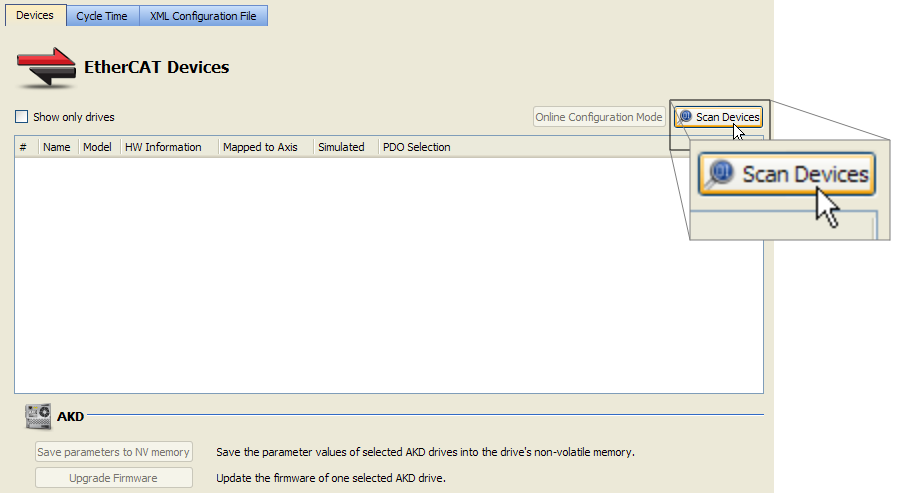
- In the Devices tab, click the Scan Devices button.
- If the scan process fails, refer to the EtherCAT Error Messages.
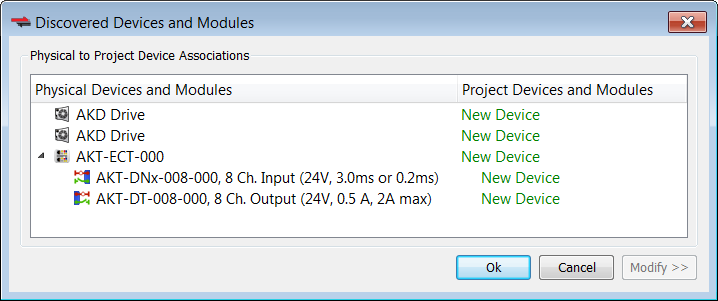
- If physical devices are discovered during the scan, they will appear under the Physical Devices column.
- If the scan process fails, refer to the EtherCAT Error Messages.
- Press OK. The devices will appear in the Devices tab and in the Project Explorer. Their associated project devices are set to the defaults.
- If you have previously compiled your project, you will be asked if you wish to recompile the project.
-
-
If you click Scan Devices again, the existing project devices will be automatically matched to the same physical devices.
The association is not lost from rescanning.
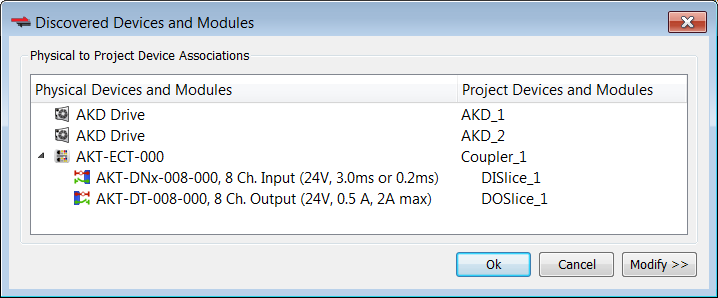
To change the device associations see Re-Scan and Change Device Associations.
To troubleshoot an error due to a missing ESI file, please see Unknown – Missing ESI File.
 See Also


