CoE Init Commands tab
This tab lists the EtherCAT device's CoE Init Commands.
- The Init commands are grouped based on the EtherCAT transition state. (Figure 1)
- The sequence within each group defines the order in which the commands are executed on the device.
- The order of CoE Init Commands can be changed to define the correct command sequence required for device operation.
- Selecting a command enables buttons to move a command Up
 , Down
  , to the Top of the table
  , and the Bottom of the table
  .
.
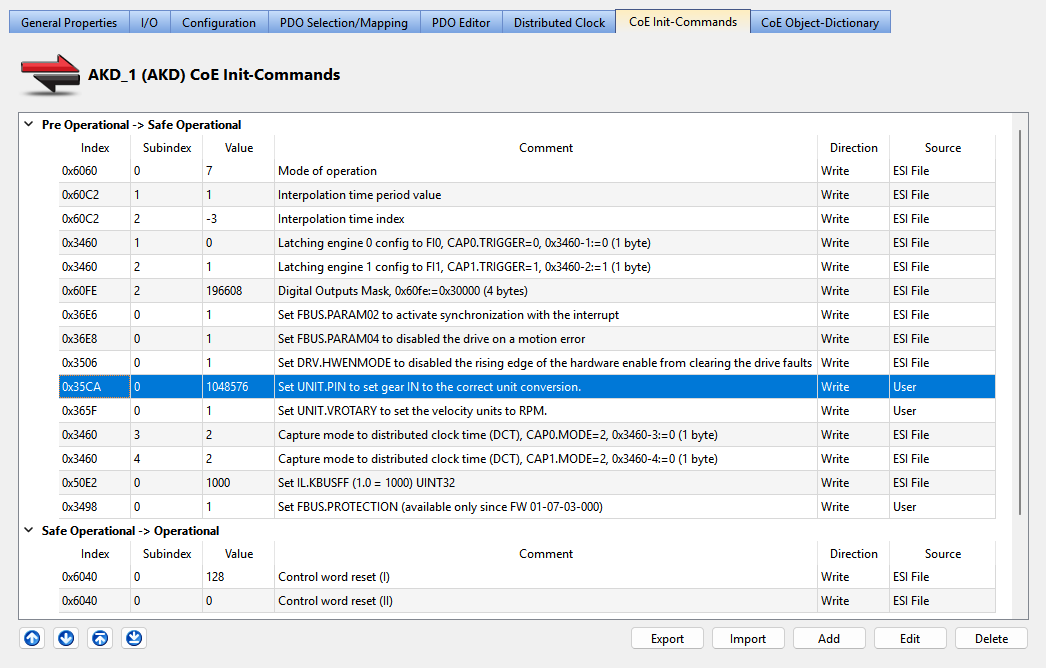
Figure 1: CoE Init Commands tab
-
-
- This tab is grayed out if the device does not support the CoE Protocol or the ESI file is unavailable.
- Fixed Init-commands have been deprecated and are not listed.
|
Column |
Description |
|---|---|
|
Index |
The hex value of the CoE-Index. |
|
Subindex |
The CoE-Subindex. |
|
Value |
Value of the init command. |
|
Comment |
Description of the init command. |
|
Direction |
Specifies if the command is Read or Write. |
|
Source |
The source of the init command. These are the values:
|
Functions
|
Button |
Description |
|---|---|
|
Export |
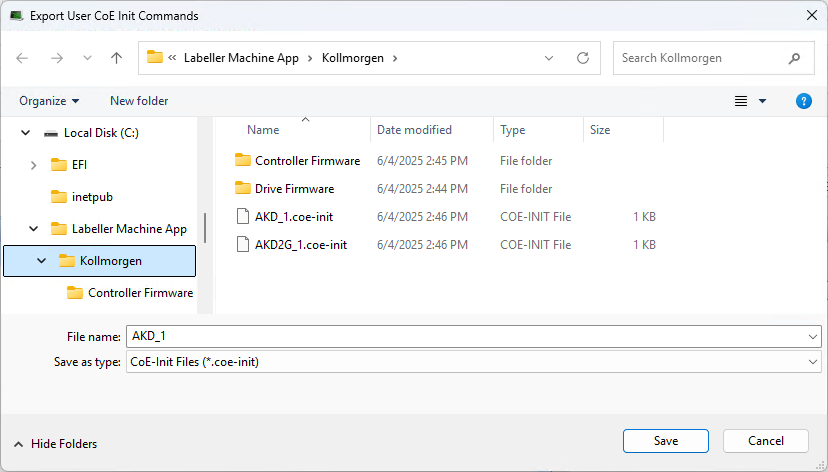
Click to open the Export User CoE Init Commands dialog box. (Figure 2)
Figure 2: Export User CoE Init Commands dialog box.
|
|
Import |
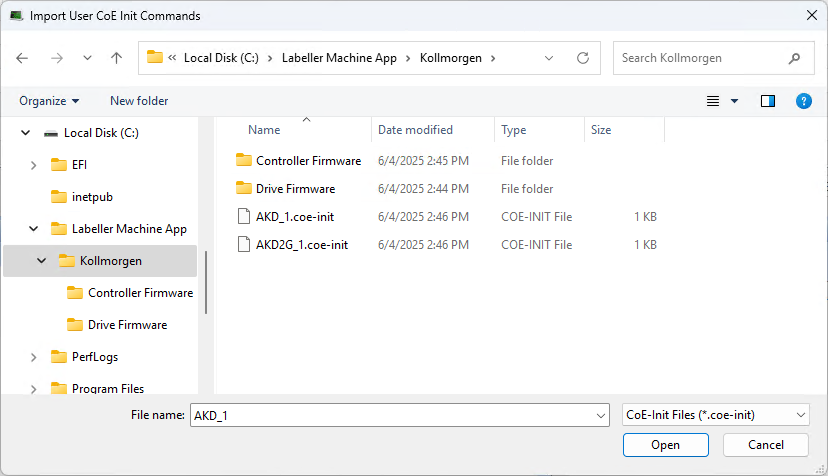
Click to open the Import User CoE Init Commands dialog box. (Figure 3)
Figure 3: Import User CoE Init Commands dialog box
|
|
Add |
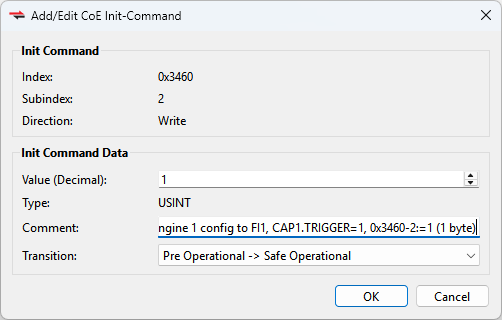
Click to open the Add/Edit CoE Init-Command dialog box. (Figure 4)
|
|
Edit |
|
|
Delete |
Click to remove the selected Init Command row. |