Shared Directory tab
|
Figure 1: PCMM2G |
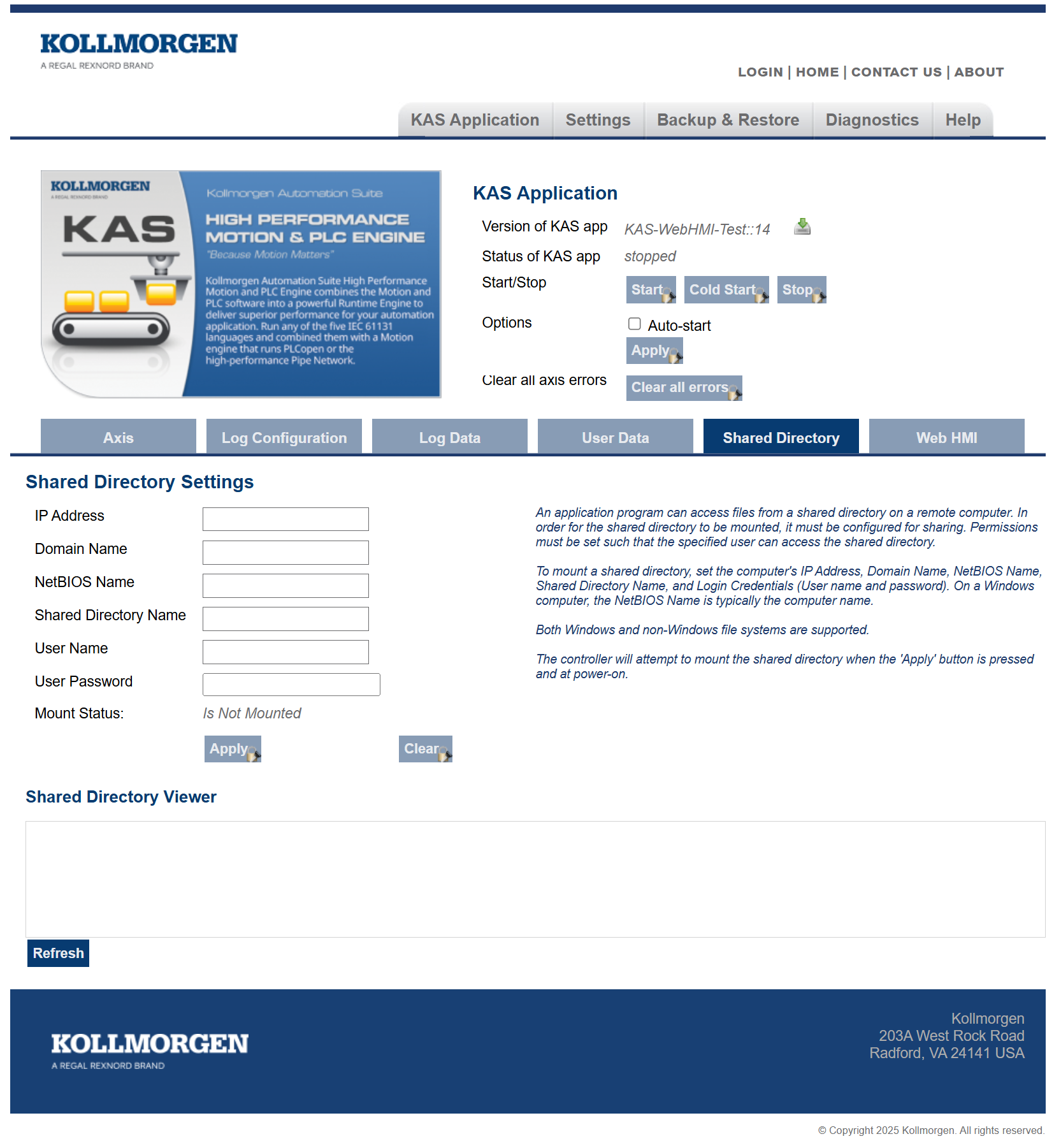
Usage
This tab is used to connect to and mount a shared directory on a remote computer (Window 7 or later and non-Windows).
This allows a program to read and parse instructions for motion.
Field Descriptions
These fields must be set to connect to the share.
-
- See this Microsoft article File Sharing Over a Network in Windows to share a directory.
|
Field |
Description |
|---|---|
|
IP Address |
Enter the IP Address of the computer that has a shared directory. |
|
Domain Name |
|
|
NetBIOS Name |
|
|
Shared Directory Name |
|
|
User Name |
|
|
User Password |
The password of a user allowed access to the shared directory. |
|
Windows File System |
|
|
Mount Status |
This field indicates whether the directory Is Mounted or Is Not Mounted. |
|
Apply |
Click this button to:
|
|
Clear |
Click this button to:
|
|
Shared Directory Viewer area |
This area:
Once the shared directory is mounted, its contents can be navigated in the Shared Directory Viewer section of this tab. |
|
Refresh |
Click this button to refresh the contents of the fields and the Shared Directory Viewer area. |
-
- We strongly recommend consulting with your IT department for setting up and connecting to a shared directory.
With differences between operating systems and the variability of security settings, this can become challenging.
-
- SMB1 must be enabled to use the Shared Directory feature with a Windows file system.


