You are here: Getting Started > Advanced Project Creation > Add and Configure Drive > Add the Drive

Add and Configure Drive

Add the Drive

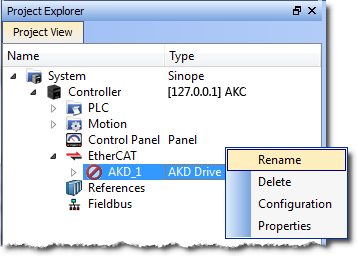
  1. In the Project Explorer, right-click the EtherCATEtherCAT is an open, high-performance Ethernet-based fieldbus system. The development goal of EtherCAT was to apply Ethernet to automation applications which require short data update times (also called cycle times) with low communication jitter (for synchronization purposes) and low hardware costs node to open the menu
  2. Select the Add Kollmorgen Device command
    (this option is only enabled when you are not connected to the controller)
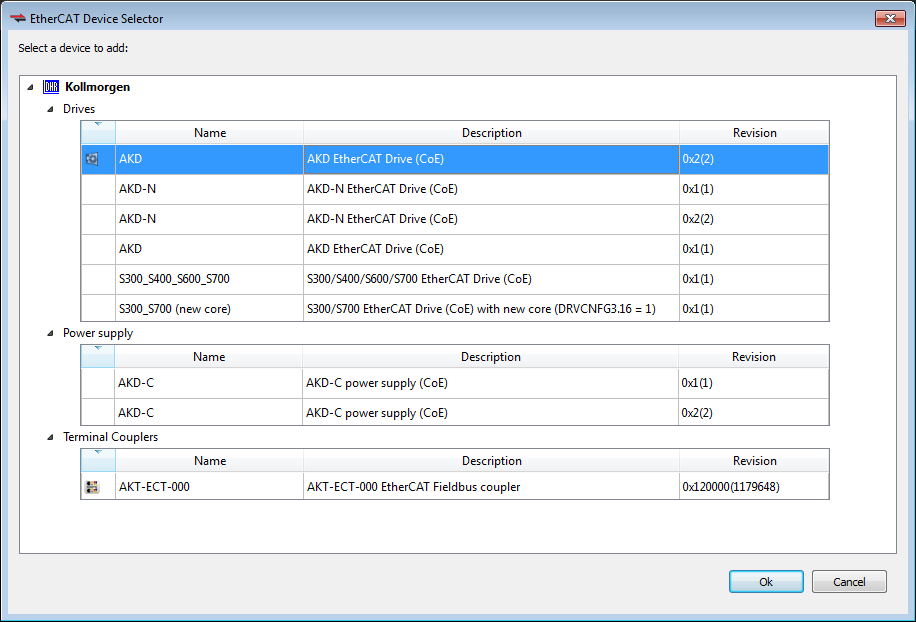
  3. Select the specific device to add.
  4. Click Ok when you are done (for more details about the AKD drive GUI"Graphical User Interface" A GUI is a type of user interface which allows people to interact with a computer and computer-controlled devices, click here)
  5. In the Project Explorer, right-click the device node and select the Rename command

  6. Define the name for the new device
    Note that the name is limited to 10 characters and can only include letters, numbers, and underscores.
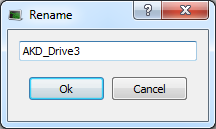
  7. Click OK

When an AKD drive is added to the project tree, it must be mapped to a physical drive. This step is explained in Add & Configure Third Party Devices.

Concept Link IconSee Also


Stay Connected with Kollmorgen

Copyright © 2015 Kollmorgen™