You are here: Getting Started > Creating a Project > Step 2 - Configure EtherCAT Motion Bus > EtherCAT Scan & Association Example 3 - Add a Module to a Device

EtherCAT Scan & Association Example 3 - Add a Module to a Device

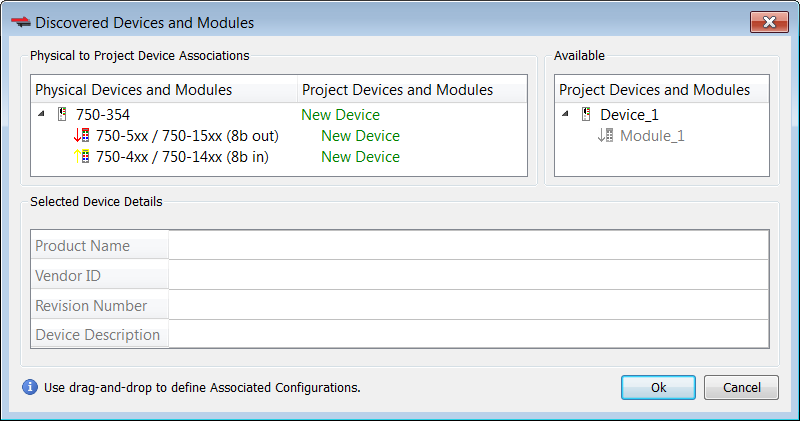
In this example a module is added to the device on the physical network:

To update the network topology:
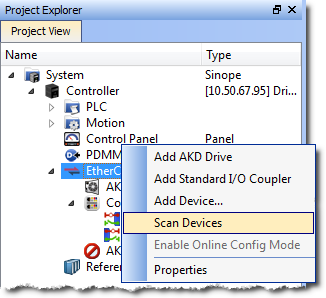
  1. In the Project Explorer, double-click the EtherCATEtherCAT is an open, high-performance Ethernet-based fieldbus system. The development goal of EtherCAT was to apply Ethernet to automation applications which require short data update times (also called cycle times) with low communication jitter (for synchronization purposes) and low hardware costs node to open its Properties and click the Scan Devices button in the Devices tab.
    Alternatively, right-click on the EtherCAT node in the Project Explorer, and select Scan Devices.
  2. The Discovered Devices and Modules dialog box appears after a successful scan.
  3. Click the Modify button to open the expanded view.
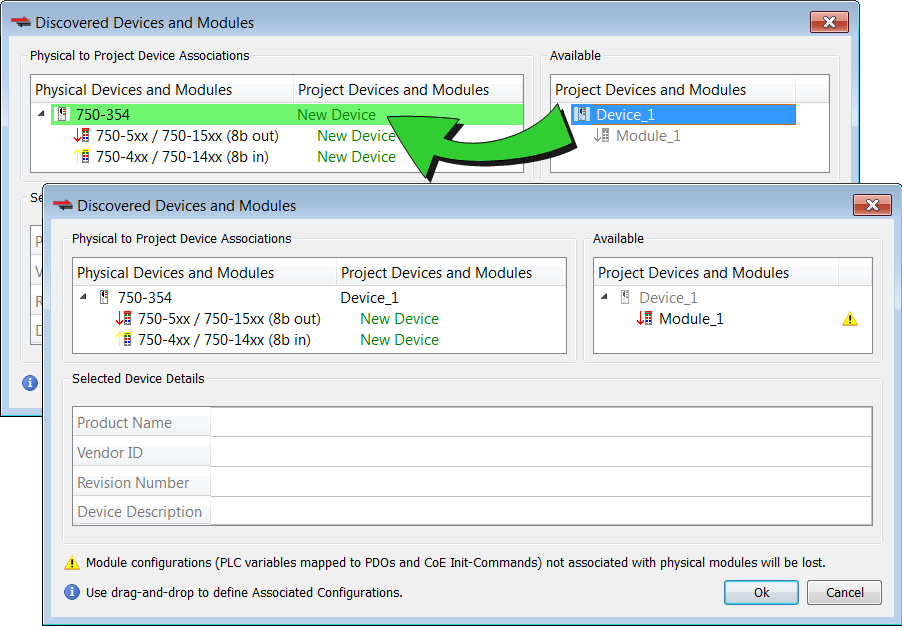
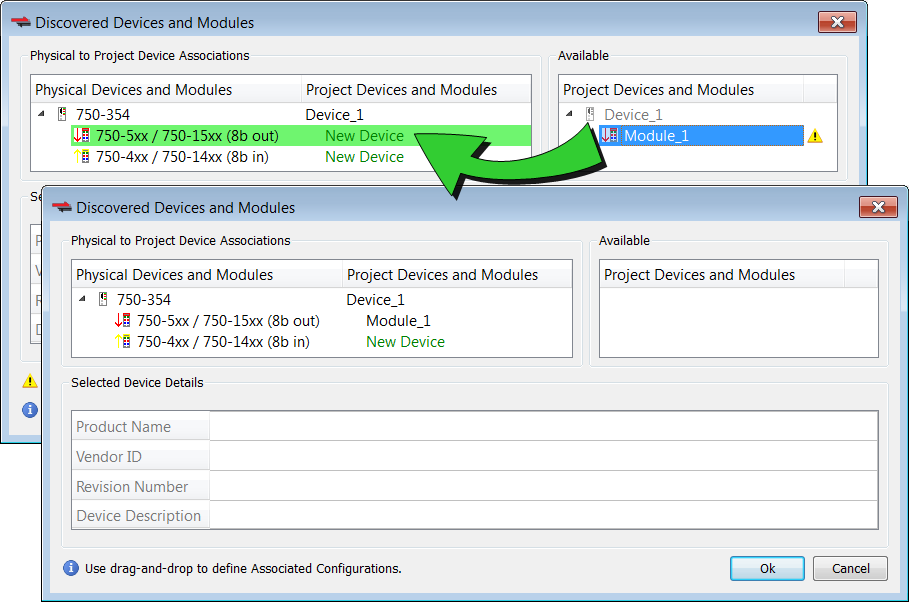
  4. To associate the project device and module to the physical device and module:
    1. Drag-and-drop Device_1 from Available to the physical device (750-354).
    2. Drag-and-drop Module_1 from Available to the physical module (750-5xx).
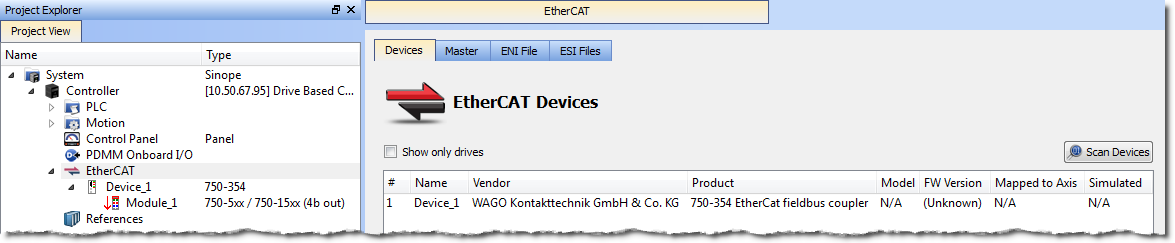
  5. Click OK to confirm the modified associations.

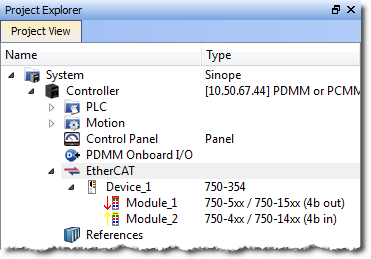
The KAS IDE"Integrated development environment" An integrated development environment is a type of computer software that assists computer programmers in developing software. IDEs normally consist of a source code editor, a compiler and/or interpreter, build-automation tools, and a debugger updates the EtherCAT nodes for the device and modules in the Project Explorer to match the physical device and modules.


Stay Connected with Kollmorgen

Copyright © 2015 Kollmorgen™