 in the bottom left corner of WorkBench to bring up the following window:
Click on in the bottom left corner of WorkBench to bring up the following window:
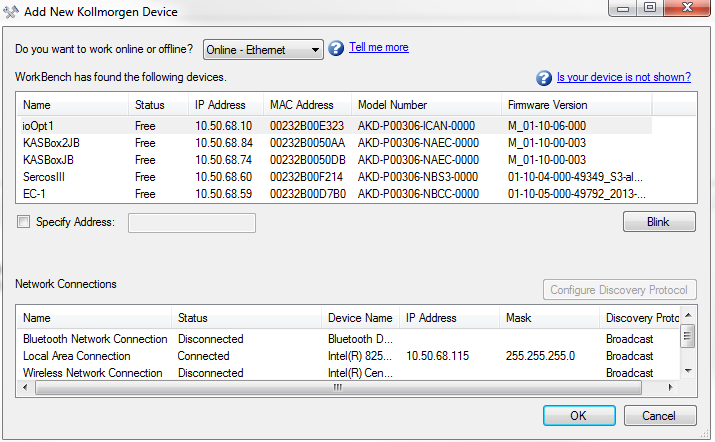
This window allows you to change the drive that you are using.
| Button or Dialog Box |
Description |
|---|---|
|
Name |
Displays the drive name. By default the name is "No_Name". You can change the name by connecting to the drive and navigating to the top item in the navigation tree. |
|
Status |
Only one user at a time can connect to a drive. If someone else is connected to the drive, it is Busy. If Free is displayed, then you can connect. |
|
Blink |
Clicking Blink forces the display on the selected drive to alternate between the whole display being on and the whole display being off for 20 seconds. |
|
MAC Address |
Displays the MAC address of the drive. The MAC addressA Media Access Control address (MAC address) is a quasi-unique identifier assigned to most network adapters or network interface cards (NICs) by the manufacturer for identification. If assigned by the manufacturer, a MAC address usually encodes the manufacturer's registered identification number is unique and is also printed on the label on the side of the drive. |
|
IP Address |
Displays the IP address of the drive. You can enter a raw IP address (1.2.3.4) or a DNS name. You can also specify a port number different from the default (port 23) by appending the IP address (for example, 1.2.3.4:1000). |
|
Specify Address |
If your drive does not appear in the list, you can enter its IP address (for example, 1.2.3.4) or a DNS name. You can also specify a port number different from the default (port 23) by appending the IP address (for example, 1.2.3.4:1000). |
|
Configure Discovery Protocol |
After selecting a discovery protocol from the list below, you can configure the discovery mode using the following four options: 1. Ping 2. Broadcast 3. Broadcast and Ping 4. No Discovery |
|
Stay Connected with Kollmorgen       
|
Copyright © 2015 Kollmorgen™ |

|