The KAS IDE"Integrated development environment"
An integrated development environment is a type of computer software that assists computer programmers in developing software.
IDEs normally consist of a source code editor, a compiler and/or interpreter, build-automation tools, and a debugger
|
|
|
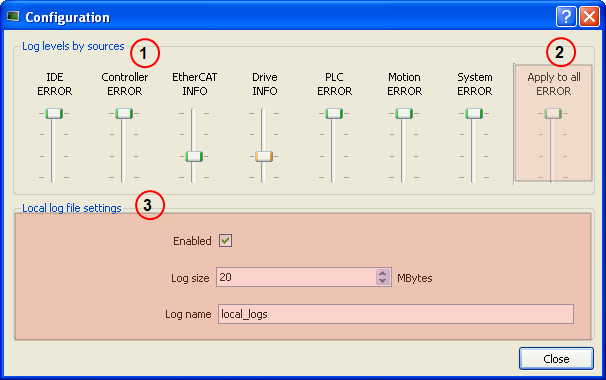
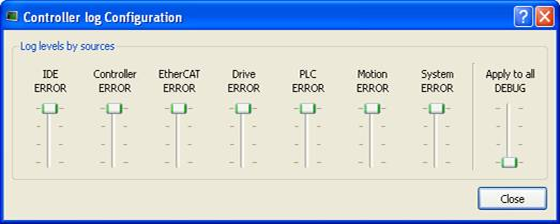
Figure 3-9: Configuration of the Local log and Controller log Messages
| Call out# | Description |
|---|---|
|
|
Each source can be set with its own level. It is possible to get a maximum of log details for the selected source without getting a flood of irrelevant messages from the other sources. |
|
|
You can set or reset all the sliders with the same level value |
|
|
Logs can be recorded on the local machine as circular files. |
PDMM/PCMM generated logs may be configured through the webpage. See PDMM and PCMM Log Files for more information on those controllers' logs.
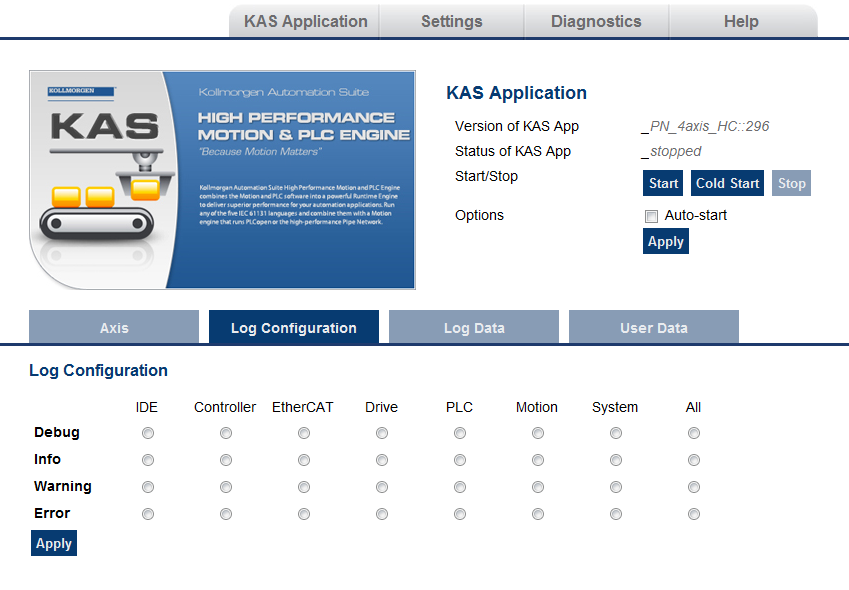
It is recommended that you use either the IDE or web page method, but not both. The communication is unidirectional and the configuration is not read at runtimeIn computer science, runtime (or run-time) describes the operation of a computer program, the duration of its execution, from beginning to termination (compare compile time). Within KAS, runtime also refers to the virtual machine that manage the program written in a computer language while it is running.
|
Level |
Icon |
Description |
|---|---|---|
| CRITICAL |

|
Application crashes or becomes unstable. Data is corrupted. At that point, the application behavior can be unpredictable. |
| ERROR |

|
The application does not behave as expected but the processes remain stable. |
| WARNING |

|
System is stable but the KAS IDE warns that an unexpected event can occur. This is the default logging level. You can ignore this log. |
| INFO |

|
Information status of the current process. You can ignore this log. |
| DEBUG |

|
Any information logged for development purpose. You can ignore this log. |
Each message has one of the following levels, with importance in ascending order:
DEBUG > INFO > WARNING > ERROR > CRITICAL
How to Choose the Appropriate Level?
When a level is set for a source, only messages with the same or higher importance are recorded. In other words, drag the level control slider Up to reduce the verbosity, Down to increase it.
When the configuration leads to lower verbosity, the treatment during the filtering is quicker.
For example, if a source is set to WARNING, then all messages with levels WARNING, ERROR and CRITICAL are recorded (DEBUG and INFO messages are discarded).
In other words, DEBUG is the most verbose, whereas ERROR is the less verbose.
Critical messages are always recorded (as a consequence, the Critical level is not visible on the slider).
Log files are a group of small files where all the last logs are recorded. Each log is recorded as a separated line.
You can import the log files into Microsoft Excel using drag-and-drop.
| Field | Description |
|---|---|
| Enabled | The Log File Settings has to be enabled to record all the logs. |
| Log size |
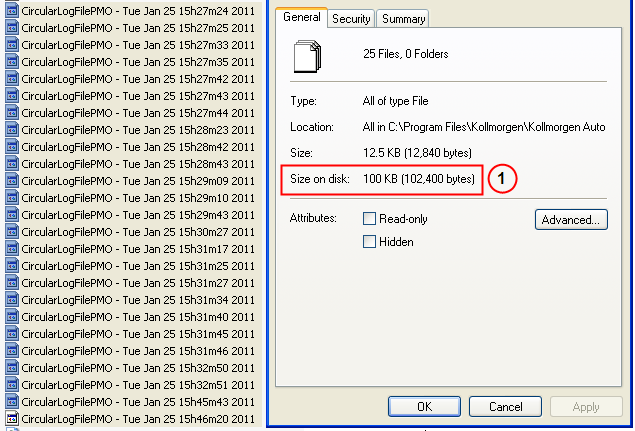
To prevent any overflow, you can define the maximum size on disk dedicated to the group of local log files. The minimum size is 1MB, the maximum log size is 2MB. At most, the system will store 20 files. When a new file is created, an old one is deleted, maintaining the 20 file threshold. In the example below, the size on disk is limited to 100 KBytes (see call out
Note that the number of rows can vary for each file, depending on what is in the backlog when KAS creates the log files. |
| Log name |
You can define the filename prefix to be used on the local machine.(on the controller, the filename prefix is: controller logs). The suffix to create the complete filename contains a timestampA timestamp is a sequence of characters, denoting the date and/or time at which a certain event occurred with the following format: - day MMM DD HHhMMmSS YYYY nn |
Where are the log files stored?
| OS | Location |
|---|---|
| Windows XP | C:\Documents and Settings\User\Local Settings\Application Data\Kollmorgen\KAS\Astrolabe\logs |
| Windows 7 | C:\Users\(user name)\AppData\Local\Kollmorgen\KAS\Astrolabe\logs |
You can narrow the list of recorded messages by specifying a filter. The filter is applied on all the strings displayed on each row of the table widget (i.e Time, Source, Level and Message).
The drop-down menu gives access to some predefined filters, which can also be edited.
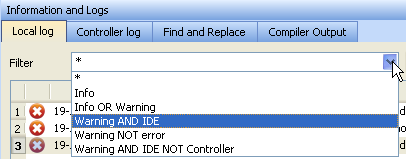
Figure 3-10: Filtering the Messages
For example, filtering with Warning NOT error means that only the lines including the word "warning" but not the word "error" are listed.
Filtering Rules
The following rules apply when you work with filters:
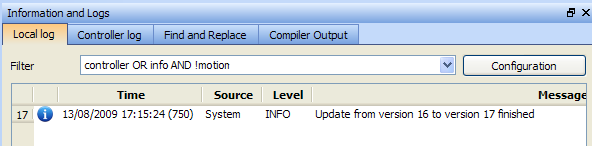
Figure 3-11: Filtering the Messages - Example
Warning! When you apply the filter, all the currently recorded messages are parsed and displayed if they match the filter. But all the upcoming recorded messages are added as new rows at the end of the table widget with no filtering.
If you select a message in the table, the scrolling is stopped.
All the upcoming recorded messages are added at the end of the list, but your selected message always remains in the same place (you have to scroll down to make the most recent messages visible).
If you select the last row of the table (shortcut: Alt+Page Down), the scrolling is active.
The last recorded message is always selected and visible at the bottom of the table.
|
Stay Connected with Kollmorgen       
|
Copyright © 2015 Kollmorgen™ |
|