Add and Configure a Servo Drive
-
- Select the Add Device... command.
This option is disabled when you are connected to the controller and an application is running. - Select the specific servo drive model to add. (Figure 1)
-
- When choosing any of the Kollmorgen AKD Series Servo Drives, be sure to select the newest revision.
Older revisions may show in the list of options, but they may not be feature complete.
If a specific revision number is required, select it from the drop-down list in the Revision column.
The default selection is the highest revision number. - Click Ok when you are done.
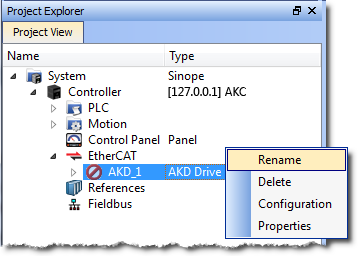
See Kollmorgen AKD Series Servo Drive. - In the Project Explorer, right-click the device node and select the Rename command. (Figure 2)
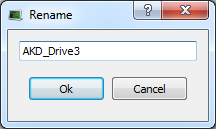
- Define the name for the new device.
The name is limited to 10 characters and can only include letters, numbers, and underscores. (Figure 3) - Click OK.
- Continue with Add and Configure Third Party EtherCAT Devices.
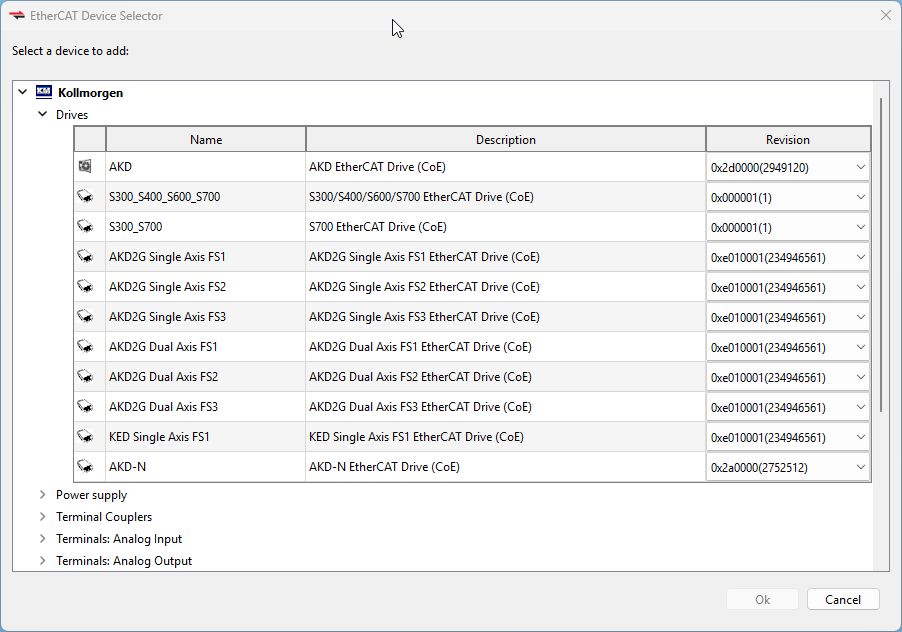
Figure 1: EtherCAT Device Selector dialog box
When an Kollmorgen AKD Series Servo Drive is added to the project tree, it must be mapped to a physical drive.
-
-
An alternative method to add a drive is to rely on the auto scan feature.


