Import the Oscilloscope Data
This procedure imports data from a CSV file.
-
-
Only CSV files can be imported.
- Navigate to the Soft Oscilloscope.
- Click the Import button.
If the Soft Oscilloscope already has data, an overwrite confirmation message appears. (Figure 1) -
-
The Import button is grayed out when the application is running and channels sample data acquisition has started.
- Click Yes to continue.
The Choose a File to Load Oscilloscope Data From dialog opens. (Figure 2) - Locate and select the CSV file to import.
- Click Open to continue.
The traces are plotted in the Oscilloscope Graphical Area.
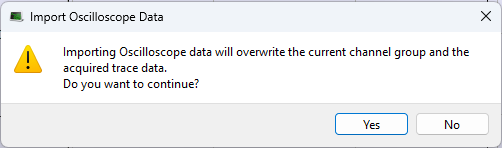
Figure 1: Import Oscilloscope Data confirmation message
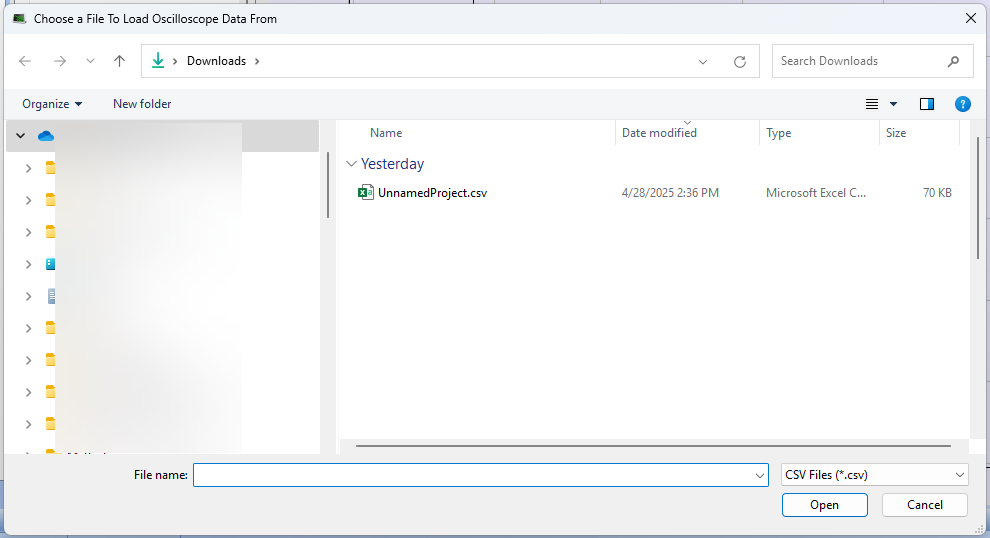
Figure 2: Choose a File to Load Oscilloscope Data From dialog


