Rename Variables
Variables may be renamed from within the Dictionary.
- The renaming function can either replace a section of the name or append text to variable names.
- The search will find and replace matches first within the Dictionary and will then continue the search within programs in the current project.
- You will have the option to propagate the changes to programs or not.
Procedure
- Right-click on any variable in the Dictionary and select Rename variables. (Figure 1)
- In the What text box, enter the phrase to be replaced
- In the Replace text box, enter the new phrase.
- Click the Where drop-down arrow and select the replacement method.
See Where for the options and their results. - Click OK to make the changes shown in the Results frame.
- Use the dialog box to choose which programs to modify.
- Click OK to save the changes or selections and close the dialog.
The programs are modified in the order they appear in the list.
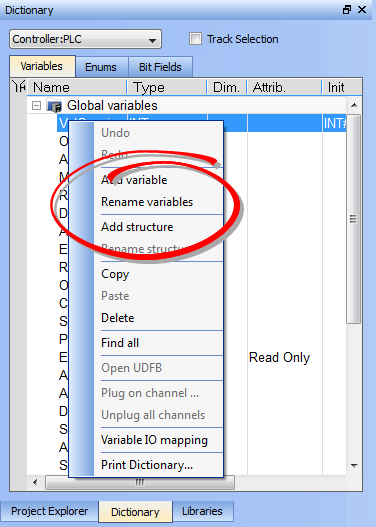
Figure 1: Rename variables option
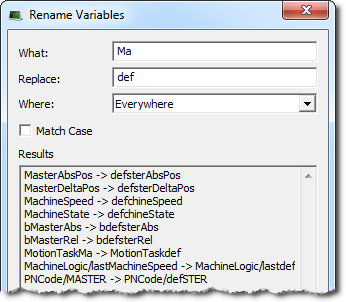
The Rename Variables dialog box opens. (Figure 2)
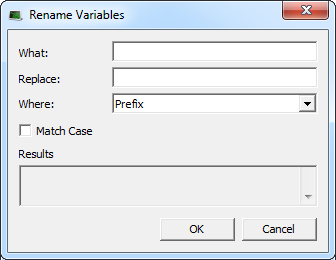
Figure 2: Rename Variables dialog box
When matches exist within programs, the Replace in files dialog box opens. (Figure 3)
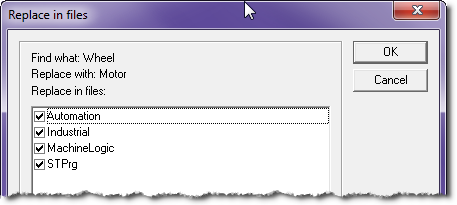
Figure 3: Replace in files dialog box
Controls in the Rename Variables dialog box
|
Control |
What it Means |
||||||
|---|---|---|---|---|---|---|---|
|
What |
Enter the variable name/text to be replaced. |
||||||
|
Replace |
This new text replaces the current variable name text. |
||||||
|
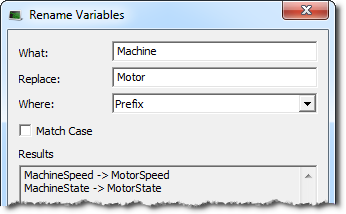
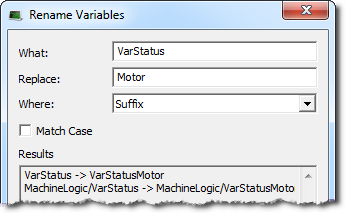
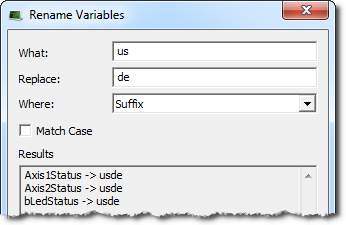
Choose where the replace occurs:
|
|||||||
|
Match Case |
The search is case sensitive. |
||||||
|
Results |
The search results and proposed changes are shown in this box. |