OPC UA - Insert an Endpoint
- In the Fieldbus Editor tree, select OPC UA Server.
The Insert Master/Port button in the vertical toolbar is activated. (Figure 1) - On the vertical toolbar, click the Insert Master/Port button (
 ).
).
The OPC UA - Endpoint dialog box opens. (Figure 2) - Optional: In the TCP/IP Address text box, enter the TCP/IP address of the KAS controller (e.g., PCMM2G).
-
-
Leave this text box blank to use the KAS controller assigned IP address.
- In the Port spin box, enter the Listening Port opened by the OPC UA Server.
- In the Security Policies section, select the applicable policy for the application.
- If using certificates in the OPC UA - Server dialog box, Security settings section, at least one of the Basic128Rsa15, Basic256, or Basic256Sha256 check boxes must be selected.
- If the Anonymous check box is selected in the OPC UA - Server dialog box, Authentication settings section, the None check box must be selected.
- Click the None check box so that no security settings are used.
- Click the Basic128Rsa15 check box to use both the Basic128 and RSA15 security policies.
- Click the Basic256 or Basic256Sha256 check box to use the 256-bit Basic as the message encryption algorithm.
- Click the Basic256Sha256 check box to use both the Basic256 and SHA256 security policies.
- Click OK to save the changes or selections and close the dialog box.
The endpoint is now available in the OPC UA Server Fieldbus Editor. (Figure 3) - Continue with OPC UA - Insert a Group.
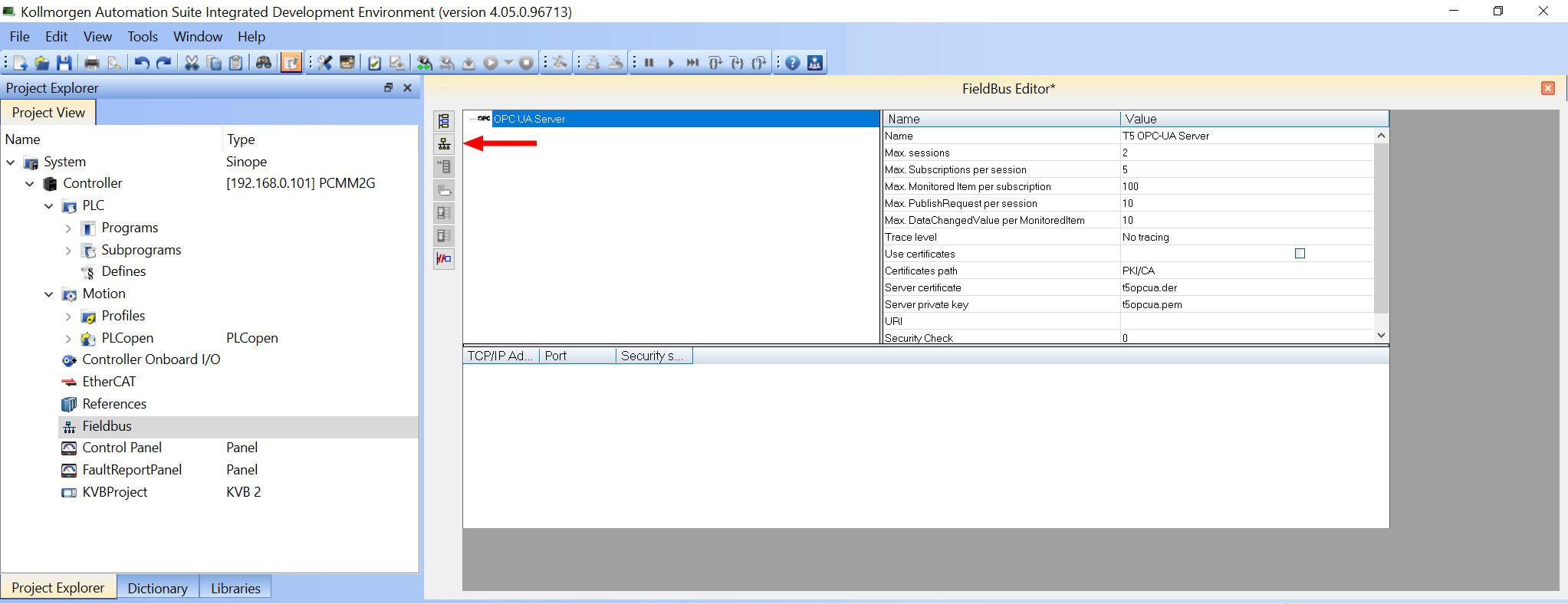
Figure 1: Insert Master/Port button
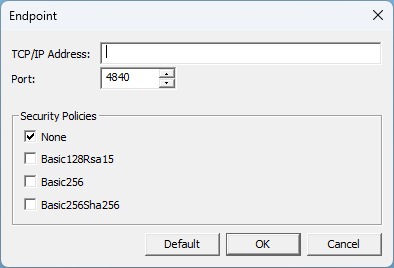
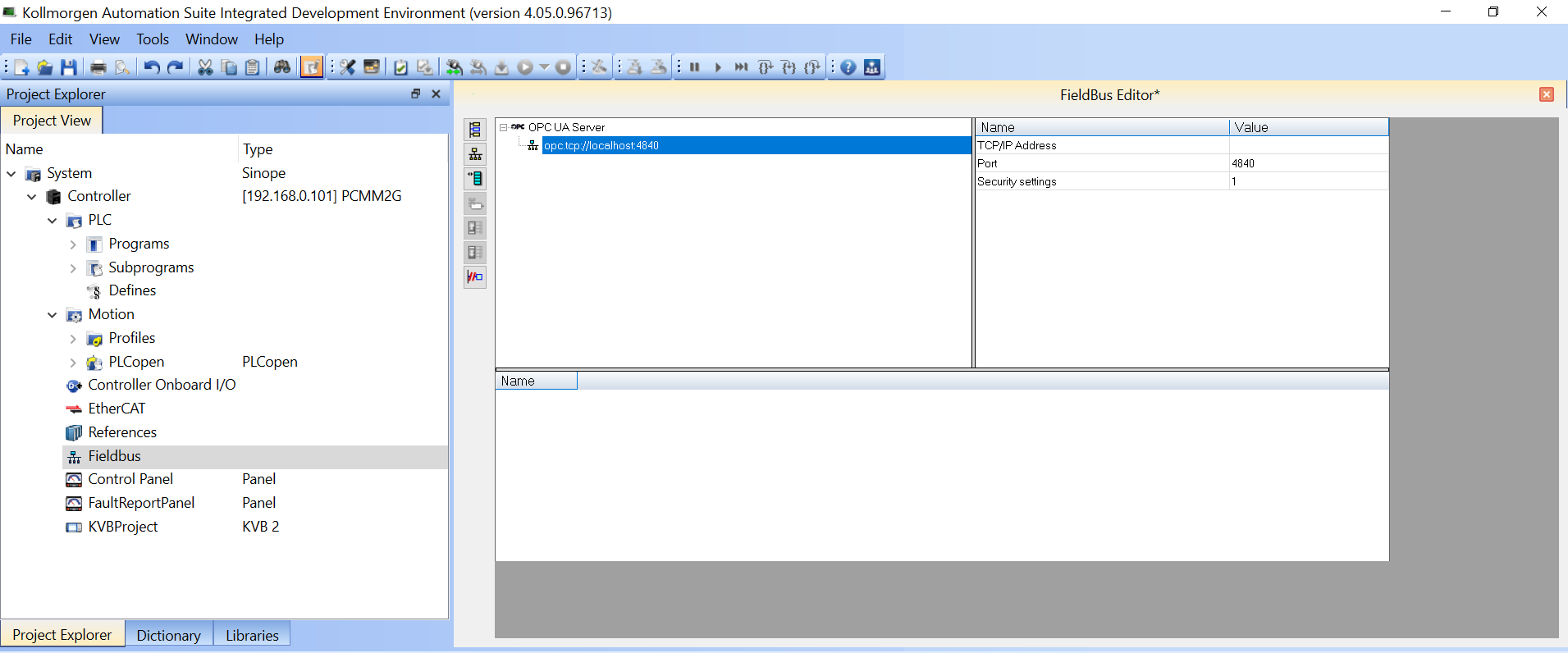
Figure 3: Fieldbus Editor with the added endpoint


