Configure the Controller
- In the Project Explorer, right-click the new controller to open the menu and click Properties.
The Controller Properties dialog box opens. (Figure 1) - Define the IP address.
-
-
- For the KAS Runtime Simulator, enter the local host IP address: 127.0.0.1.
- The KAS-IDE supports accessing controllers configured using Fully Qualified Domain Names (FQDN) (e.g., 10.8.45.212.ip.net, kas-pcmm2g-01.lap.company.com), instead of raw IP addresses.
- This enables seamless connectivity in environments where hostname-based access is required.
- This capability is particularly beneficial in enterprise environments with remote or secure access configurations and for customers utilizing similar DNS-based setups.
- Optional: Specify a version number (the string can be composed of any character).
-
-
- Versioning is useful to make improvements to the application and if a version control system is needed.
- The version is saved in your project file.
- See Use a Version Control System.
- Optional: Choose whether the project's source code should be downloaded to the controller.
- This is enabled by default and your preference is saved with the project.
- Disabling this option means a comparison of source on the controller and in the IDE is not available.
- Optional: Choose whether PLC variables are read/written via an HTTP connection.
This requires that the source be downloaded to the controller.
By default this option is disabled so unauthorized changes may not be made. -
-
Recompile the project before downloading it to the controller.
- Select whether Modbus goes to a KVB Panel or is handled by another Modbus device.
- Set the Cycle Time (i.e., the communication update frequency).
See Modbus Slave. -
-
- Click OK to save the changes or selections and close the dialog box.
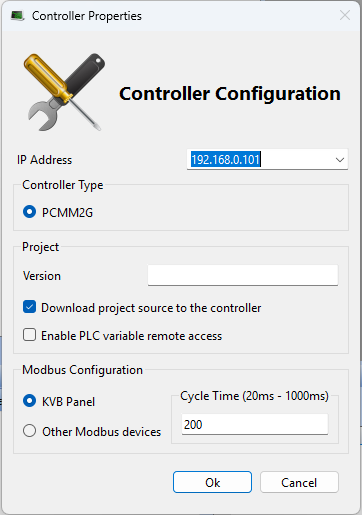
Figure 1: Controller Properties dialog box