Bit Fields tab
A bitfield is a user-defined data type that combines multiple Boolean or integer values into a single variable.
- Bit Fields are used to define custom variable types and values.
- A bitfield packs multiple pieces of data together in one variable.
- Each field represents an independent piece of information.
- These fields can be referenced individually within the application.
- Bitfields provide a compact and organized way to group related status and control information while maintaining easy access to individual fields.
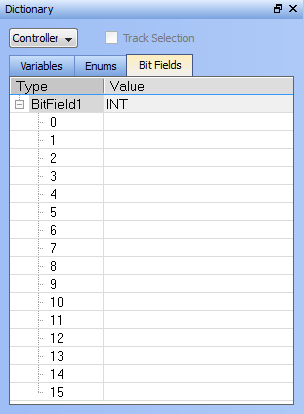
Adding Bit Fields
A Bit Field is created in one of these ways:
- Right-click in the Bit Fields tab and select Insert BitFields.
- Press the Insert key while the Bit Fields tab is active
- Double-click in the Bit Fields tab.
This creates a default Bit Field labeled as BitFieldn with a Value type INT.
- The Bit Field type Value is changed by double-clicking on value, allowing a selection from a list.
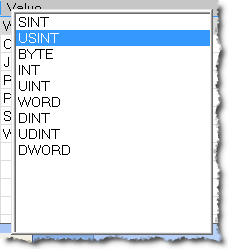
Figure 1:
Once the Type is defined you may populate the bits.
- Double click on a bit value to change the text.
-
-
To save the changes, you must press Enter, Tab, the Up, or the Down arrow key.
Using Bit Fields
This example sets up and tests a Bit Fields entry.
- Define the Bit Field Type and Values.
In this example, the bit is defined as ConveyorState with five values. (Figure 2) - To define a multibit field, select multiple value cells and type the name of the new field.
-
-
- Not all bits need to be assigned to a field.
- There may be unassigned bits between fields.
- Create a variable whose Type that matches the Bit Field.
- Select the ConveyorState type from the drop-down menu. (Figure 4)
- To use a field, enter the VariableName.FieldName in any editor.
- In this example, the Structured Text editor is used.
- Conveyor1State. is entered as the VariableName.
- When the dot is typed, the user-defined fields dialog box opens. (Figure 5)
- In the dialog box, select the applicable field for the variable (e.g., PartCount).
- Click OK to save the changes or selections and close the dialog box.
- To assign or compare the value of a multibit field against a constant, specify the bitfield base type followed by # before the numerical constant.
- To assign or compare the value of a field comprising of a single bit, use True, False, 0, or 1.
Using the base type prefix generates a compiler error. (Figure 7)
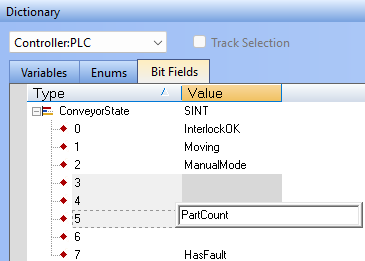
Figure 2: Example: ConveyorState
The name of the multibit field appears in all bits the field occupies. (Figure 3)
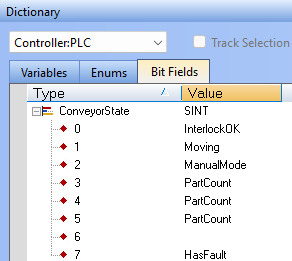
In this example, a variable is defined as Converyor1State.
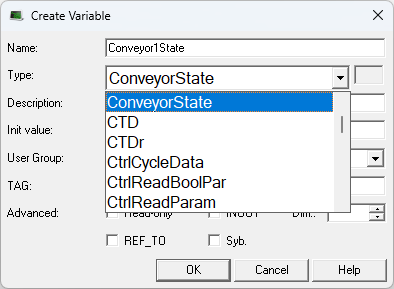
Figure 4: Selected ConveyorState
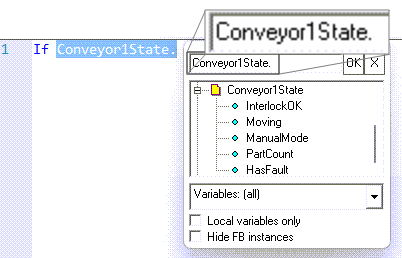
Figure 5: Conveyor1State user-defined field dialog box
In this example, since ConveyorState has a base type of SINT, the SINT# prefix is used. (Figure 6)
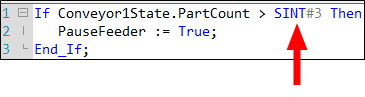
Figure 6: Multibit Field Comparison

Modbus Support
Bit Fields are supported over Modbus.
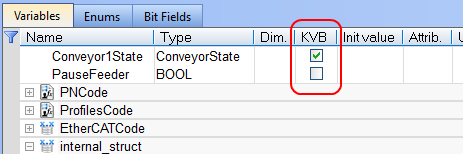
- Figure 8 is a variable with a custom Type defined in the Bit Fields list which is flagged for KVB.
- It will be exported to Modbus.