Backup Controller and EtherCAT Devices
This procedure backs up the PCMM2G and its connected EtherCAT devices.
The backup includes:
- All controller backup data.
- EtherCAT network topology.
- Firmware packages and drive parameters for Kollmorgen servo drives (AKD, AKD2G, KED, KLD) detected on the network.
- All firmware packages are available to download from the Kollmorgen Support Network site.
These are the elements that are backed up or restored:
- Controller firmware.
- Date/Time - Network Time Protocol (NTP) and Set Time Zone settings.
- EtherCAT network topology.
- Kollmorgen servo drives firmware packages and their respective drive parameters.
- Network configuration.
- PLC Application.
- Retain Variables.
- Shared Directory settings.
- SSH Connection Enable/Disable configuration.
- User data files.
- See User Data tab.
- Web server and SSH user accounts configuration.
Restore Notes
- The drive's data and firmware are copied from the USB flash drive to the controller flash when the Restore Controller function is selected.
- The Restore EtherCAT Devices function should be selected for restoring the data and the firmware of any replaced Kollmorgen AKD Series Servo Drives.
-
-
- A PCMM2G backup created from any PCMM2G axis model can be restored on a different axis model.
- The restored KAS project does not run if the physical axes need for the project is more than the restored model can support.
Additional Notes
- This operation cannot be performed while an application is running.
- Backup Controller takes several minutes to complete.
- Do not power off the controller once started.
Backup EtherCAT devices save the network topology, the Kollmorgen servo drives firmware and parameters.
- For EtherCAT devices backup operation, a matching firmware package is required.
- If a matching firmware package exists on the controller, it is used for future backups.
- If a matching firmware package does not exist on the controller, you are asked to provide it.
Procedure
- Click the Backup Controller & EtherCAT Devices button.
- Click OK to continue.
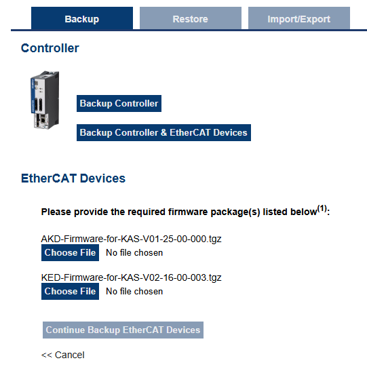
The controller EtherCAT network is scanned for all .TGZ firmware. - For each .TGZ file found, click the Choose File button to back that file up.
When a file is chosen, the Continue Backup EtherCAT Devices button is activated. - Click the Choose File button for all .TGZ files to back up.
- When the applicable .TGZ files are chosen, click the Continue Backup EtherCAT Devices button.
The chosen files are backed up on the USB flash drive.
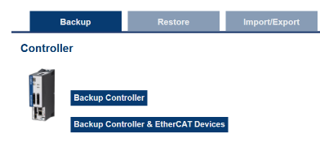
Figure 1: Backup Controller and Backup Controller & EtherCAT Devices buttons
A confirmation message appears to continue the backup.

Figure 2: Confirmation message
See Also


