Kollmorgen Servo Drive
-
-
- First generation AKD,
- AKD2G drives support either one or two axes per drive.
- In the EtherCAT Devices tab, assign a motion axis to each drive axis.
- For dual-axis AKD2G drives, each drive axis must be mapped to a separate motion axis.
- First generation AKD,
See WorkBench Views in the KAS-IDE.
WorkBench Toolbar
The toolbar provides access to these actions:
- Enable / Disable the drive (software enable).
- Start / Stop the Service Motion.
- Mode: Position / torque / velocity
- Disable and Clear Faults:
- Click this button to clear the fault.
- Click the Enable button to enable the drive again.
- See Clearing Faults.
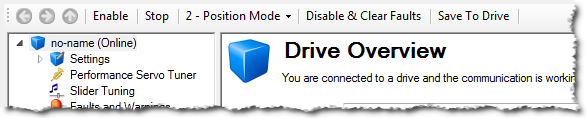
Figure 1: AKD Toolbar
-
-
To stop all the Kollmorgen AKD Series Servo Drives views at the same time, click the Stop button (
 ) in the Device toolbar.
WorkBench Status Bar
The status bar provides the following information on the drive:
- A fault indicator (No Faults / x Faults) that becomes red when any AKD gets a fault.
- Use the Log Messages Settings to get more details on the drive messages.
- The drive status: active / inactive.
- The software (SW) enable status.
- The hardware (HW) enable status.

Figure 2: AKD Status Bar
For the SW and HW enable status indicators, the color code is:
 See Also


