OPC UA - Insert a Group
- In the Fieldbus Editor tree, select an OPC UA Server endpoint.
The Insert Slave/Data Block button in the vertical toolbar is activated. (Figure 1) - On the vertical toolbar, click the Insert Slave/Data Block button (
 ).
).
The OPC UA - Group: dialog box opens. (Figure 2) -
-
- The Group: dialog box can only create a single group.
- See OPC UA - Add Multiple Groups and Variables to the Driver Configuration.
- In the Name row, double click the Value column cell.
The Name - Value text box appears. - Enter the name for the new group. (Figure 3)
- Press <Enter> to save the information and close the text box.
- Click OK to save the changes or selections and close the dialog box.
The new data group is added under the OPC UA Server endpoint in the Fieldbus Editor. (Figure 4) - Continue with OPC UA - Insert a Variable.
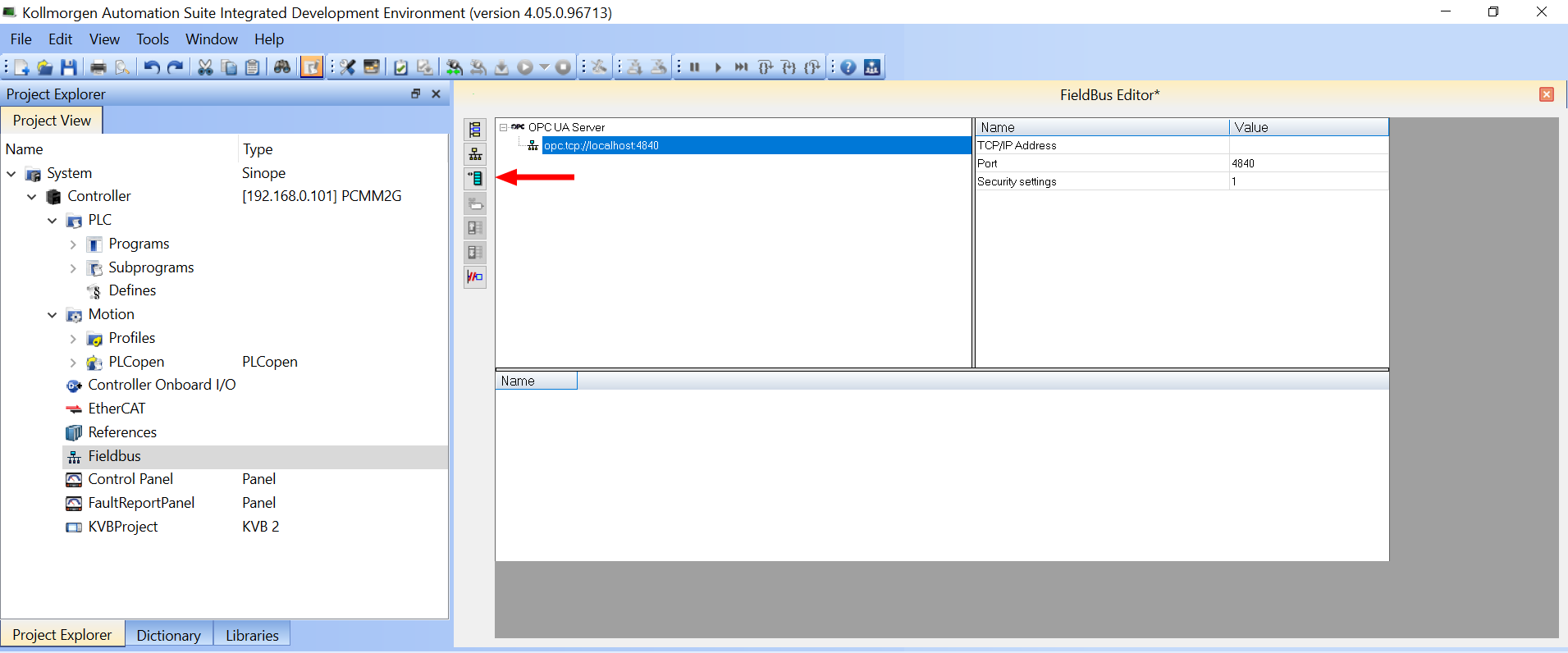
Figure 1: Insert Slave/Data Block button
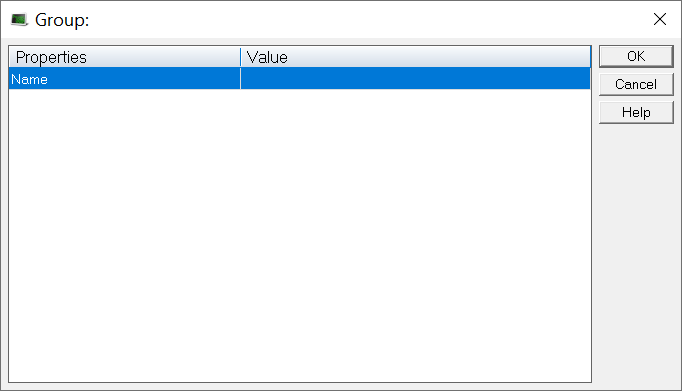
The Group: dialog box is used to create an individual group.
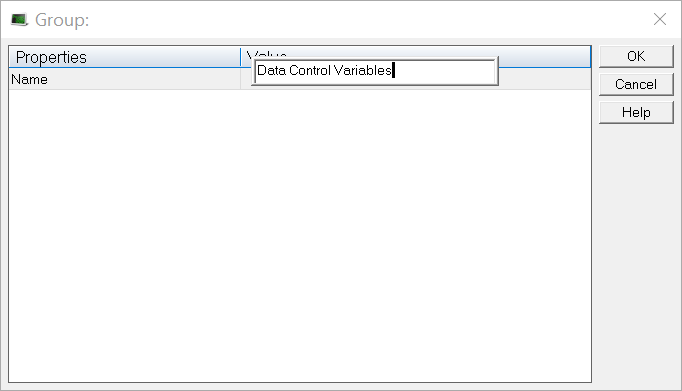
Figure 3: Name - Value text box
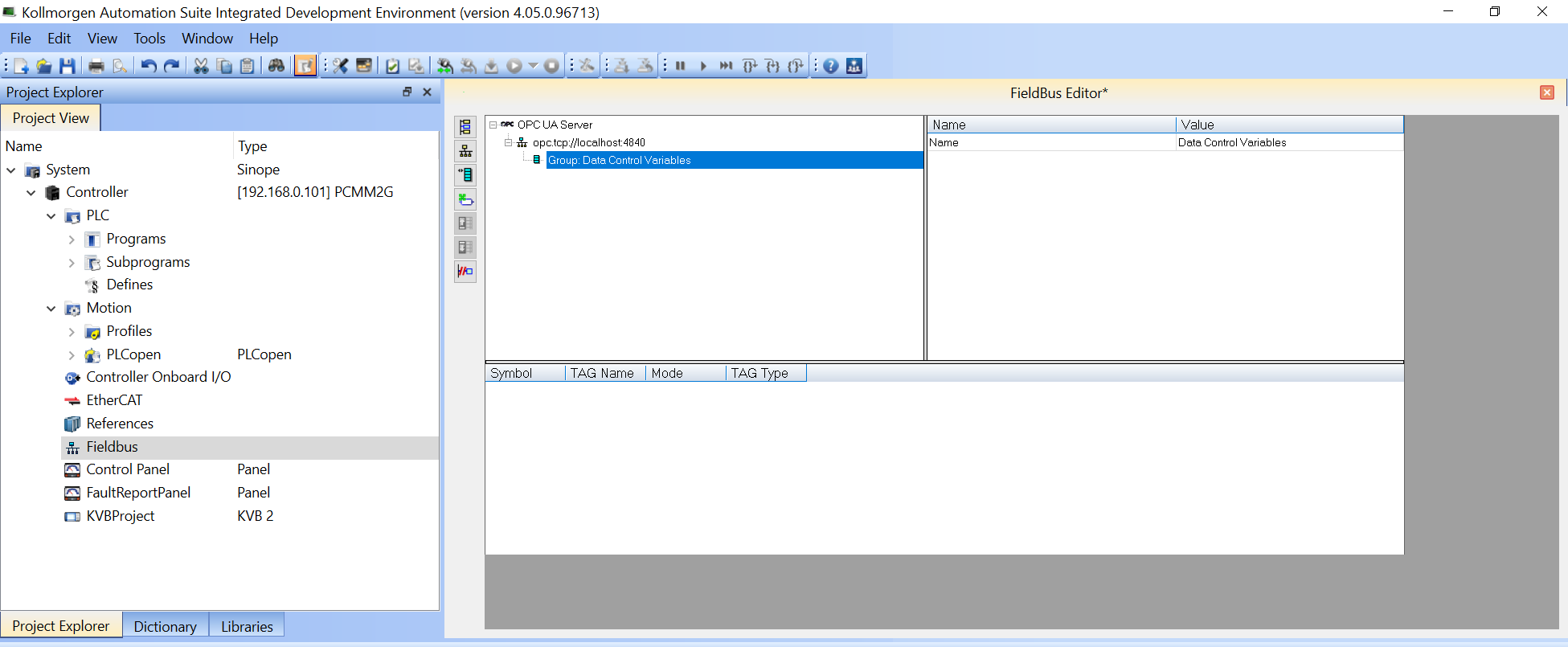
Figure 4: Fieldbus Editor with the added group


