Set, Remove, Enable, and Disable Breakpoints
This section discusses working with breakpoints within the editor.
See Breakpoints tab for information on the Information and Logs widget, including modifying breakpoints in bulk.
For background information see Breakpoints.
Set Breakpoints
- Open your program in the IEC 61131-3 Editor.
- Click on the line (for ST/ IL) or diagram (for SFC 1 , FBD or FFLD) where you want to set the breakpoint.
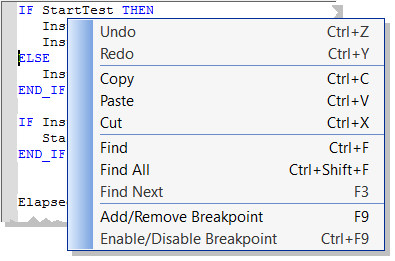
- Press F9 or right-click and select Add/Remove Breakpoint from the menu.
- A Breakpoint circle is added to or removed from the left margin.
The Breakpoint is set as either active ( ) or inactive (
 ), based on the KAS-IDE's connectivity.
Even when you are not connected to the controller, breakpoints can be placed in programs, sub-programs or UDFBs.
-
-
When you start your application, if the current position is not on a valid line for stepping, the breakpoint is automatically moved to the nearest valid position.
-
-
When you close the connection with the target, all the breakpoints are removed in the KAS Runtime.
About SFC
There are several things to note about breakpoints in SFC programs:
- In SFC programs, breakpoints can only be set on transitions (i.e., in First Level diagram), and not in steps or conditions. With a breakpoint set on a transition, you can debug cycle-by-cycle. Please remember that P1, N and P0 placeholders are designed to contain very simple code.
The recommended way to proceed for SFC sub-level programs is to rely on subprograms, where debugging is allowed.
- Breakpoints can be set and removed in SFC programs, they cannot be enabled and disabled.
Enable/Disable a Breakpoint
Enable a Breakpoint
- Right-click on an inactive breakpoint and select Enable / Disable Breakpoint (or <Ctrl + F9>).
- This is only available when the KAS-IDE and runtime are connected.
Disable a Breakpoint
- Right-click on an active breakpoint and select Enable / Disable Breakpoint (or <Ctrl + F9>).
- Selecting this option removes the breakpoint from the runtime.
- The breakpoint remains in the editor and can be changed to an inactive state.


