Add and Configure Third-party EtherCAT Devices
EtherCAT devices physically connected to the network can be scanned and discovered.
- EtherCAT devices can be manually added to the EtherCAT node in the Project view.
- Manually added devices allow the project to be configured before connecting.
-
-
- KAS has limited support for third-party drives that follows the CANopen DS-402 standard.
- Contact your Kollmorgen representative for details.
- KAS supports third-party FSoE Masters.
- BBH FSoE Master SCU-1-EC support is integrated with the KAS-IDE and is recommended.
- Contact BBH for the latest ESI file that matches with the SCU-1-EC firmware version.
- See the BBH web-site for SCU-1-EC.
- Other third-party FSoE Masters are possible but require the FSoE/Connected PDOs to be configured manually by the user.
- KAS has limited support for third-party drives that follows the CANopen DS-402 standard.
Procedure
- In the Project View, double-click the EtherCAT node and select the ESI Files tab.
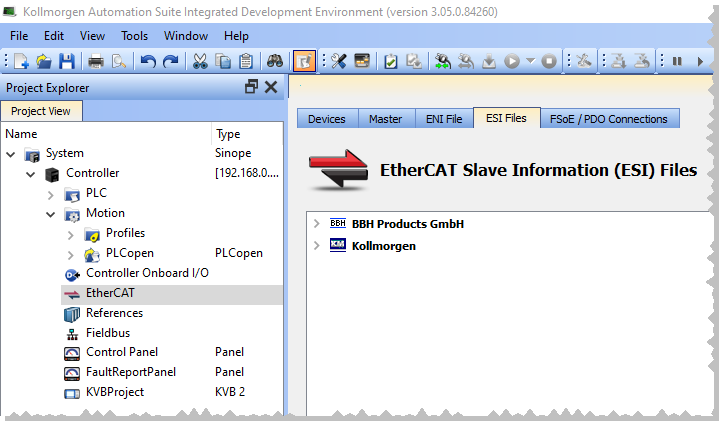
- Use the Add button to add ESI files from a third-party vendor.
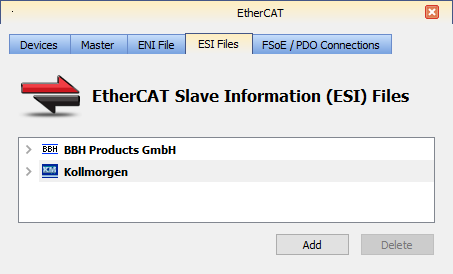
- Navigate to where you have the third-party ESI file saved on your computer and click Open.
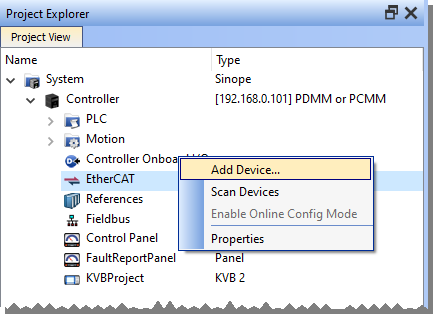
This adds the manufacturer and device to the list of available devices. - Right-click the EtherCAT node and select Add Device....
- Select the device from the EtherCAT Device Selector dialog box.
If a specific revision number is required, it may be selected from the drop-down list in the revision column.
The default selection is the highest revision number.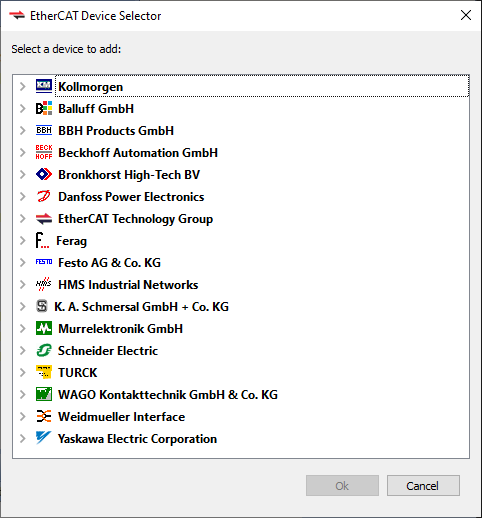
- Click OK to save the changes or selections and close the dialog box.
The device is added to the project tree in the EtherCAT node.


