Recover Using the Web server
If the controller detects a problem in the firmware, the 7-segment display shows  .
.
This means a firmware recovery is needed.
These are the Recovery Modes:
AKD PDMM and PCMM Web server Recovery Mode
AKD PDMM and PCMM enter Recovery Mode automatically.
- Recovery Mode is used to select and upgrade a firmware image file containing the KAS Runtime image on the AKD PDMM or PCMM.
- When Recovery Mode cannot be automatically accessed, press and hold B2 at boot to force the AKD PDMM or PCMM to boot into Recovery Mode.
-
-
- The Recovery Mode allows any firmware image file to be loaded into the controller's flash memory.
- The Recovery Mode does NOT verify the selected firmware file is compatible with the hardware model.
- Verify the Recommended File Name matches the selected firmware file.
- If an incompatible firmware file is loaded into the AKD PDMM's or PCMM's flash memory, the AKD PDMM or PCMM fails to boot into the Runtime image and fails to automatically boot into Recovery Mode.
- To recover from this situation requires manually booting into Recovery Mode.
- See Boot from Recovery Image (B2 Button).
PCMM2G Web server Recovery Mode
-
- Recovery Mode is not automatic.
It requires manual intervention using a specially prepared USB flash drive.
Recovery USB Flash Drive
There are two kinds of Recovery USB flash drives:
- Production Image Recovery - restores the controller to a factory production state.
- Customer Image Recovery - restores the controller to a previously saved, customer configuration.
Production Image Recovery
This procedure is used to recover a PCMM2G controller using the official recovery firmware image.
- Step 1: Prepare the PCMM2G Recovery Image
- Step 2: Flash the Image to USB Flash Drive
- Step 3: Boot and Recover the PCMM2G
Pre-requisites
Hardware Requirements
- A computer running Windows 10/11 or Linux with administrative privileges.
- A USB flash drive with at least 8GB capacity.
- A stable internet connection.
Software Requirements
- PCMM2G Recovery firmware image file (.wic.bz2).
- Download the file from here: PCMM2G Recovery Operating System (OS) + Runtime (RT)
- Archive extraction software:
- Flashing tool (choose one):
- balenaEtcher – cross-platform and user-friendly interface.
- Rufus - Windows-only, with advanced options.
-
-
- Flashing erases all data on the USB flash drive.
- Back up any important files before proceeding.
Step 1: Prepare the PCMM2G Recovery Image
- Download the PCMM2G recovery firmware .wic.bz2 image file from here: PCMM2G Recovery Operating System (OS) + Runtime (RT).
- It is recommended to download the same version of the recovery image as the existing Operation System and Runtime image.
- See Recovery Operating System (OS) + KAS Runtime (RT) - File Naming Convention.
- Extract the image using 7-Zip, WinZip, or another compatible archive tool:
- Right-click the .wic.bz2 file downloaded in Step 1.
- Select either Extract Here or Extract to folder.
The result is a .wic file.
-
-
- Verify the extraction tool supports the .bz2 format.
- 7-Zip is recommended for Windows and Linux users.
Step 2: Flash the Image to USB Flash Drive
- Insert the USB flash drive into the computer.
- Launch either the balenaEtcher or Rufus software.
- Select the extracted .wic file as the source image.
- Choose the USB flash drive as the target device.
- Click Flash (balenaEtcher) or Start (Rufus) to begin.
- Wait for the flashing process to be completed and safely eject the USB flash drive.
Step 3: Boot and Recover the PCMM2G
- Insert the Recovery USB flash drive into X37 USB Port of the PCMM2G.
- Hold the B2 button and power-cycle the PCMM2G.
- Release the B2 button anytime after the 7-segment display shows
 .
. - See Booting the PCMM2G Controller.
- If a
 7-segment display appears while bootup with the B2 button held down, there is not a bootable drive inserted in the X37 USB Port.
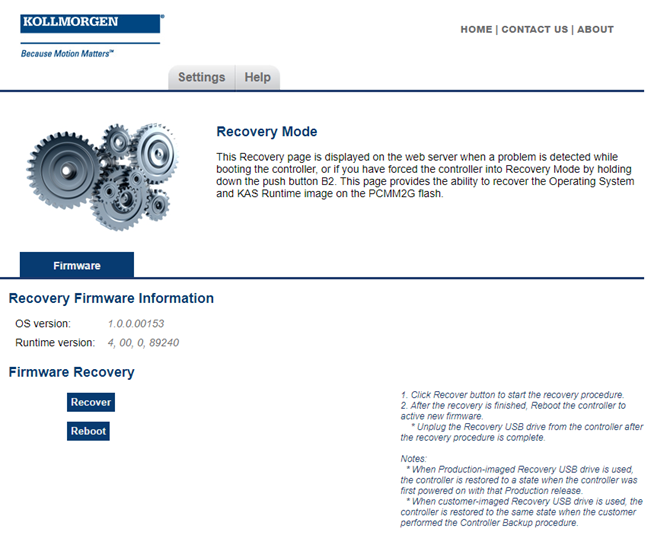
- When the PCMM2G is in Recovery Mode, connect to the controller from a web browser using the PCMM2G's IP address (e.g., http://192.168.0.101).
- On the Recovery Mode page, click the Recover button to start the recovery procedure.
- After the recovery is completed, reboot the controller.
Recommendations
- Connect to the controller using the web browser.
- Verify both the firmware OS and Runtime versions are as expected.
- Unplug the Recovery USB drive from the controller after the recovery procedure is completed.
- Production-image Recovery USB flash drive:
- You must reprogram the controller with your configuration.
- Customer-imaged Recovery USB flash drive:
- All settings are restored and the controller is fully operational.
If you used the:
When using the Production-image Recovery USB flash drive to perform Recovery, the controller is restored to a state when the controller was powered on with that Production release.
Customer Image Recovery
The Customer-imaged backup Recovery USB flash drive is generated using the Controller Backup and Restore procedure.
-
- It is recommended to create the Recovery USB flash drive using the Controller Backup and Restore procedure every time the firmware on the controller is updated.
This procedure creates an exact backup of the controller unlike the Production-image Recovery USB flash drive.
This is an important difference while recovering the controller.
When using the customer-imaged Recovery USB flash drive to perform the Recovery, the controller is restored to the same state when the customer performed the Controller Backup procedure.
See Also


