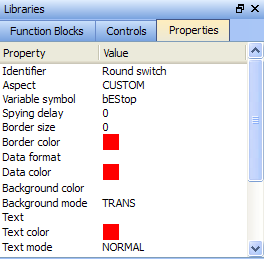
When a control is selected, you can change its properties (displayed in the Libraries toolbox) by double-clicking the Value.
Figure 10-33: Control Panel Control Properties
For an exhaustive list of properties, refer to Graphic Objects Properties
To duplicate all the selection, hold down Ctrl and click the right mouse button while performing your move operation (do not forget to release the mouse button first, before the Ctrl key).
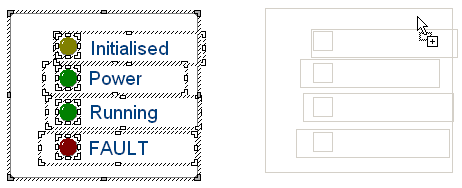
Figure 10-34: Control Panel - Selection of Controls
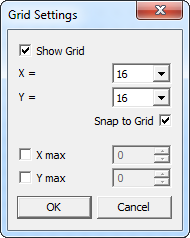
Right-clicking in the Control Panel's graphical editor provides access to the Grid Settings by selecting Grid. This may also accessed by pressing Ctrl-G. The settings allow you to control the appearance of the grid as well as forcing objects to "snap" to the grid. Settings are per panel and are saved with the project.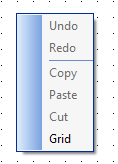
| Parameter | Description |
|---|---|
| Show Grid | Display or hide the grid in the Control Panel |
| X= / Y= | Space between each grid dot in X/Y directions |
| Snap to Grid | Controls will be forcibly aligned with the grid when they are placed/moved |
| X max / Y max | Set a maximum area in which the grid is shown. The editor is grayed out beyond these dimensions. Please note that objects may still be placed within the grayed out area as it is merely a visual aid.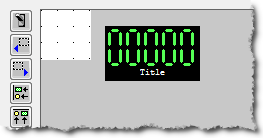 |
|
Stay Connected with Kollmorgen       
|
Copyright © 2015 Kollmorgen™ |

|