OPC UA - Add Multiple Groups and Variables to the Driver Configuration
- In the OPC UA Server tree, right-click a Master node and select the Add TAG(s) option. (Figure 1)
- Add a new group:
- Click the Add group button to add a new group row in the Group/Variable table.
- In the Group/Variable column, double-click the column cell.
The Group/Variable text box appears. (Figure 3) - In the Group/Variable text box, enter a name for the new group.
- Press <Enter> to save the information and close the text box.
-dbx-w-group-name-txt-bx.png)
Figure 3: Group/Variable text box
- Add variables to a group:
- In the Group/Variable table, select a group to add a variable to.
- In the Available Variables table, select a variable and click the
 button. (Figure 4)
 - Repeat Steps 3a and 3b to add more variables to the group.
In the Variable Dictionary table, select a variable and drag it under the designated group.
-dbx-Selected-Variable.png)
The variable is copied to the Group/Variable table. (Figure 5)
-dbx-Selected-Variable-added-2-grp.png)
Figure 5: Variable added to group
- Repeat Steps 2 and 3 to add more groups and their variables to the application.
- Click OK to save the changes or selections and close the dialog box.
A confirmation message appears. (Figure 6) - Click Yes to continue.
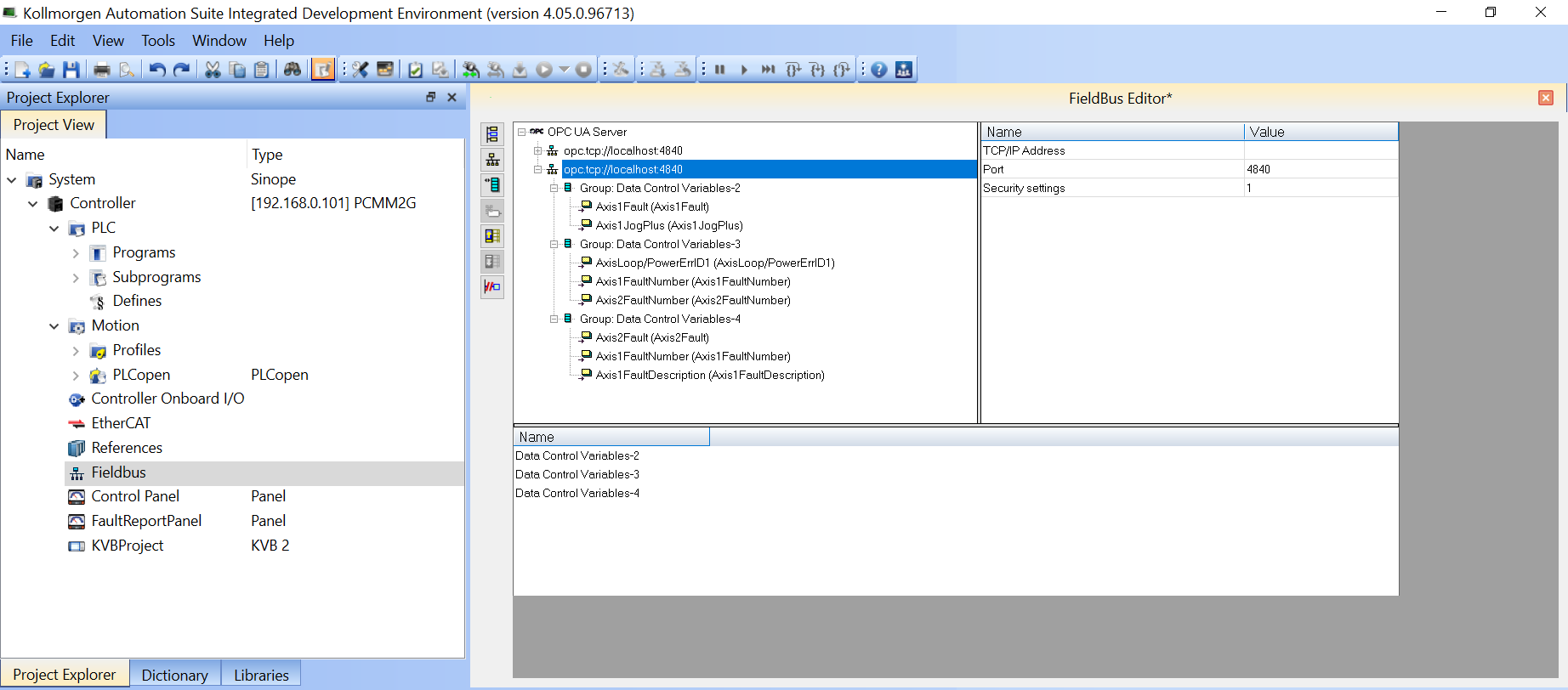
The new groups are now available in the Fieldbus Editor. (Figure 7)
The TAG types of the variables are automatically set to the correct type.
-optn.png)
The OPC UA - Add TAG(s)* dialog box opens. (Figure 2)
-dbx-DEFAULT.png)
Figure 2: Add TAG(s) dialog box
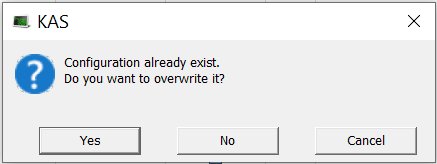
Figure 6: Confirmation message
-
-
- Using Drag and Drop functionality to add variables from the Variable Dictionary table to the driver configuration may result in wrong TAG type assignments.
- The KAS-IDE generates errors during project compilation if mismatches between variable Data Type and OPC UA TAG type for single data points are detected.
- This ensures only valid configurations are applied to the target system.
See Also


