Configure Project Settings
- On the Project menu, click Settings.
The Project Settings dialog box opens. (Figure 1) - In the Compilation section:
- Select either the Release or Debug option button.
- Select the Release option button:
- If step-by-step debugging is not required.
- To give highest performance to the application.
- Select the Debug option button to use Step-By-Step Debugging during simulation or online testing.
- The conditional compilation option _DEBUG is automatically defined when this option is selected.
- See how the application is compiled in the See Conditional Compiling example.
- Select the Release option button:
- Click the Code Generation drop-down arrow and select either Normal or Optimized.
- For PCMM2G only:
- Select the Enable Single-Core Compatibility Mode check box if:
- The application does not follow multi-core controller programming guidelines.
- Reduced performance on the PCMM2G is acceptable for the application.
The limitations listed in Single-Core Compatibility Mode are acceptable.
- Select the Allow non-compliant syntax to evaluate function block outputs check box if:
- The application was developed using a version of KAS earlier than v4.00.
- You are encountering Unexpected complex data in expression compile errors.
- You prefer not to update the KAS project to use compliant syntax for the corresponding function blocks.
- Select the Enable Single-Core Compatibility Mode check box if:
- In the Debugging Options section:
- Select the Allow PLC Variables to be Locked check box to enable PLC variables to be locked (forced).
- Select the Online Line Change Enabled check box to update the PLC application while it is running on the controller.
- In the Web Content Generation section for PCMM2G only:
- Select the Generate Web-based Control Panels check box to allow access to control panel files in the project from the web browser using the KAS Web server.
- In the Refresh Interval text box, specify the interval at which web pages are refreshed to receive PLC variable updates from the KAS Web server.
- Click OK to save the changes or selections and close the dialog box.
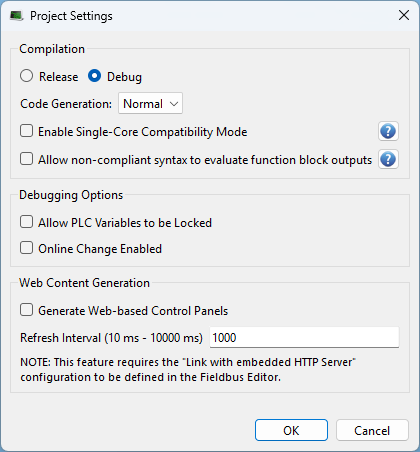
Figure 1: Project Settings dialog box
See Also


