Migrate from a PxMM to a PCMM2G Controller
-
-
- This procedure is for users with AKD PDMM or PCMM (PxMM) experience.
- Starting with KAS v5.00, support for PxMM controllers is discontinued.
- KAS v4.05 is the last officially supported KAS release for PxMM controllers.
- Customers migrating from AKD PDMM or PCMM controllers running KAS versions earlier than v4.05 are advised to:
- Upgrade the controller and project to KAS v4.05.
- Verify that the project builds, downloads, and runs correctly on the PxMM controller.
- Now, proceed with migration to the PCMM2G controller.
These are the basic steps to migrate data from a PxMM to a PCMM2G Controller.
Prepare the User .KAS Project for Migration
-
-
- This section outlines the steps to update KAS projects developed for AKD PDMM / PCMM single-core controllers to the PCMM2G multi-core controller, following the multi-core controller guidelines.
- Starting with KAS v4.05, PCMM2G supports a single-core compatibility mode to simplify migration.
- See Single-Core Compatibility Mode.
- While this mode does not provide the full benefits of multi-core architecture, it allows existing AKD PDMM / PCMM projects to run on PCMM2G without requiring immediate adoption of multi-core programming practices.
- If reduced performance on the PCMM2G is acceptable for the application, skip this section and continue with PCMM2G Hardware Preparation.
Procedure
- Download the latest KAS v4.05 runtime firmware.
- AKD PDMM: AKD PDMM Firmware / Software Download.
- PCMM: PCMM Firmware / Software Download.
- Download and install the KAS-IDE v4.05 software matching the PxMM firmware from here: KAS-IDE Distribution.
- Use the Web server to complete the Upgrade the Controller's Firmware procedure.
- Backup the .KAS project to migrate.
We recommend you make a backup copy of your .KAS project so any project or code changes can be verified independently. - Start the KAS-IDE.
- Click File > Open to search for and open the .KAS project.
- Review and make code changes to the project code to be compliant with the Program a Multi-Core Controller guidelines.
- Compile and download the .KAS project to the PxMM.
- Run the Project and verify it is working as expected using KAS v4.05.
- Save the verified .KAS project.
- Continue with PCMM2G Hardware Preparation.
PCMM2G Hardware Preparation
 Click to view the PCMM2G Hardware Connections
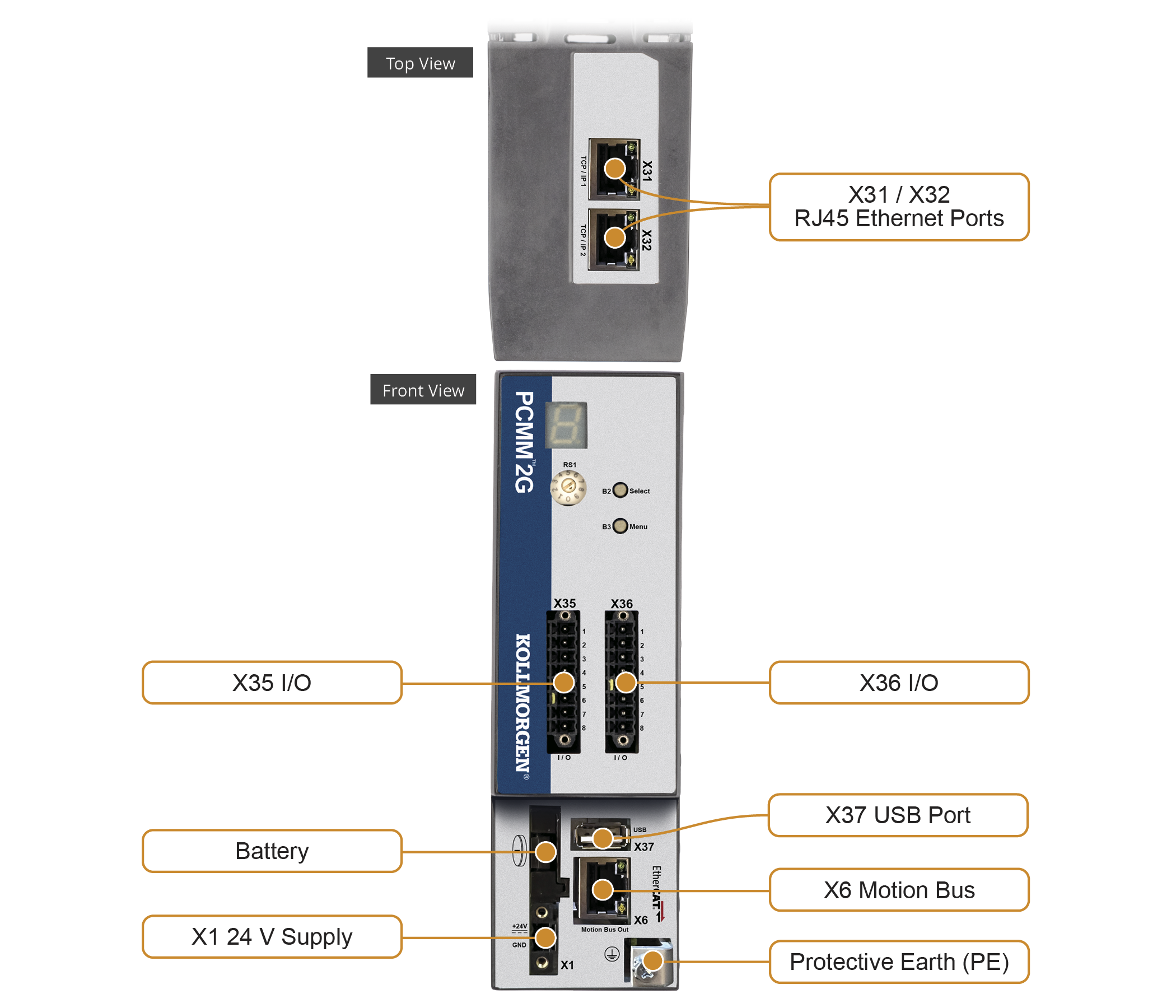
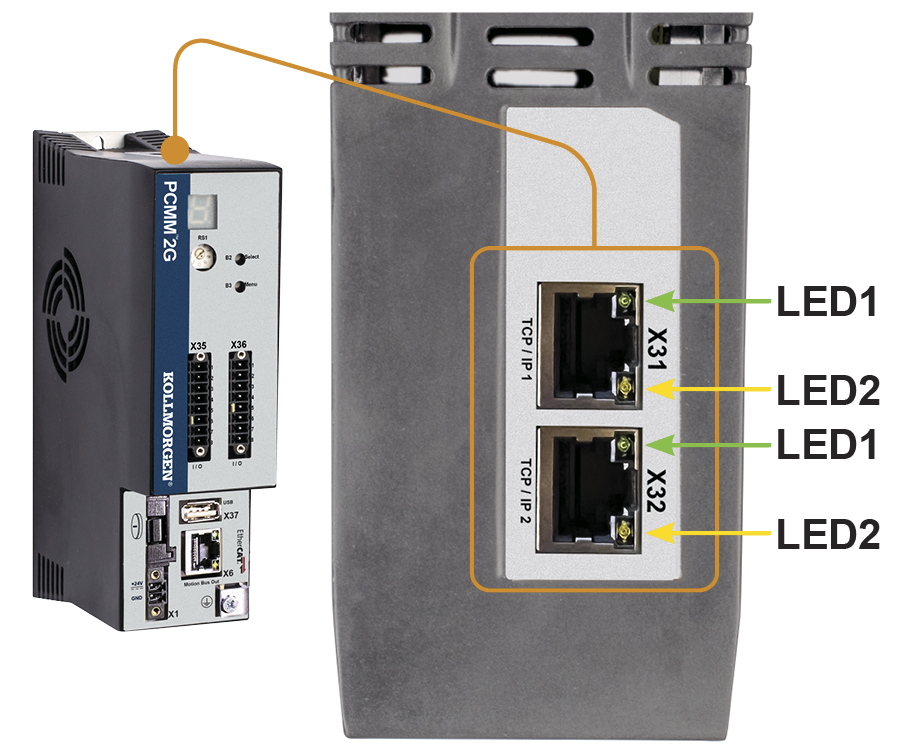
Figure 1: PCMM2G Hardware Connections
- Verify the PCMM2G is turned off.
- PCMM2G-specific settings:
- Connect the service interface (X31 or X32) of the PCMM2G to an Ethernet interface on the PC directly or use a
network hub/switch.
Use standard Cat. 5e / Cat. 6 Ethernet cables for connection. - Insert the USB flash drive into X37.
- Connect the service interface (X31 or X32) of the PCMM2G to an Ethernet interface on the PC directly or use a
network hub/switch.
- Hardware settings similar to the PxMM:
- Set the Rotary Switch RS1 to the applicable position.
See the PCMM2G Installation Manual for additional setup information. - Move these cables from the PxMM to the PCMM2G:
- X35 and X36 I/O port.
- X6 EtherCAT Motion Bus port.
- Attach a 24VDC power supply connection to X1 to power on the PCMM2G.
The PCMM2G Boot Sequence starts.
- Set the Rotary Switch RS1 to the applicable position.
- Confirm the X31 or X32 LED1 on the PCMM2G are green.
- Continue with PCMM2G Configuration.
PCMM2G Configuration
- Download the latest PCMM2G firmware from the KSN page here: KSN Downloads - PCMM2G Firmware.
- Identify the PCMM2G's IP address.
See View the Controller IP Address. - Open a web browser and enter the controller's IP address.
The PCMM2G's Web server opens. - Click the LOGIN link at the top of the window.
- Enter the password to log in.
The factory default password isadministrator.
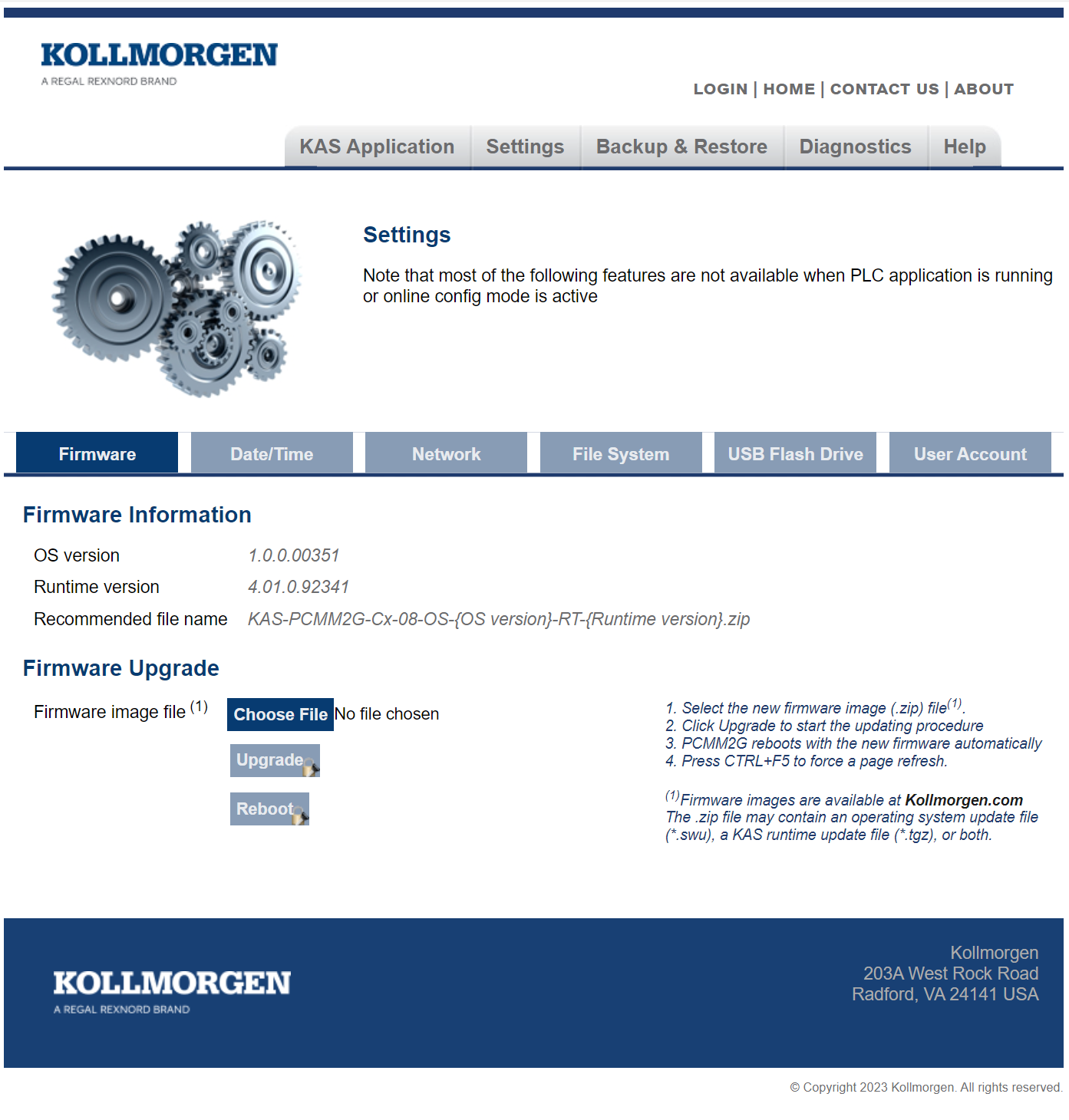
This can be changed after logging in. - Click the Settings tab. (Figure 2)
- On the Firmware tab, complete the Upgrade the Controller's Firmware procedure.
- On the Date/Time tab, edit the date, time, and time zone.
- By default, the NTP Server is selected for the Date/Time.
- The Date/Time can be manually changed using the Update Date/Time procedure.
- A Time Zone must be assigned to the PCMM2G.
- If the PCMM2G Rotary Switch RS1 is set to 1, use the Network tab to manually define the IP address.
- Continue with User .KAS Project Migration.
Notes about the Date/Time tab
User .KAS Project Migration
- In the KAS-IDE, click File > Open to search for and open the .KAS project saved in the Prepare the User .KAS Project for Migration procedure.
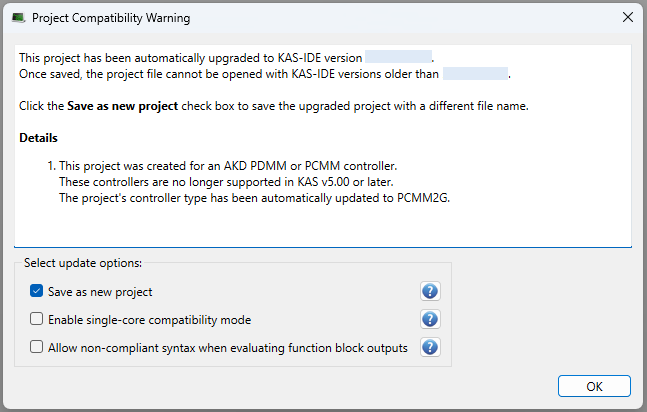
The Project Compatibility Warning dialog box opens. (Figure 3) - In the dialog box, configure the applicable update options.
- Optional (but recommended): Accept the default selection of the Select Save as new project check box to make a copy of the newly converted project.
- This preserves the original project file.
- If this check boxis selected, the Project Save-As dialog box opens.
- You are prompted to specify the file location and name for the updated project.
- Select the Enable Single-Core Compatibility Mode check box if:
- The application does not follow multi-core controller programming guidelines.
- Reduced performance on the PCMM2G is acceptable for the application.
The limitations listed in Single-Core Compatibility Mode are acceptable.
- Select the Allow non-compliant syntax to evaluate function block outputs check box if:
- The application was developed using a version of KAS earlier than v4.00.
- You prefer not to update the KAS project to use compliant syntax for the corresponding function blocks.
- Click OK to save the changes or selections and close the dialog box.
- Optional (but recommended): Accept the default selection of the Select Save as new project check box to make a copy of the newly converted project.
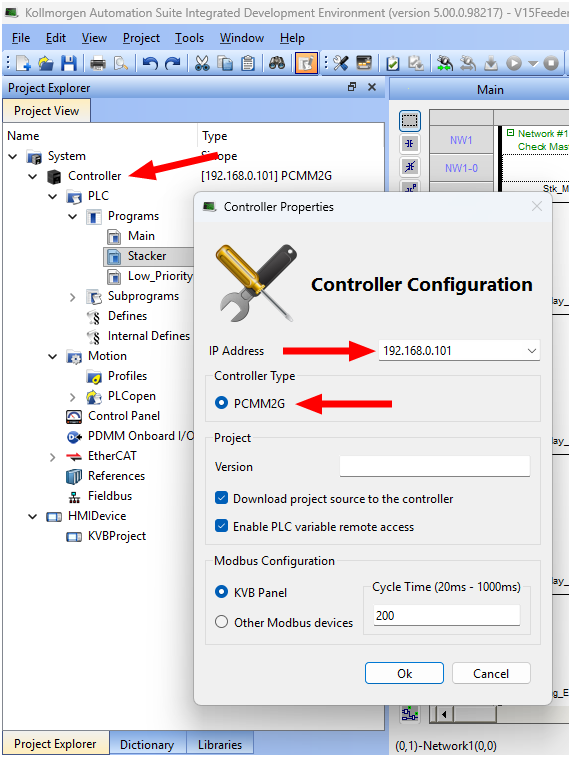
- In the Project View panel, right-click Controller and click Properties.
The Controller Properties dialog box opens. (Figure 4) - Configure the PCMM2G:
- In the IP address drop-down, enter the PCMM2G IP address.
- Click OK to save the changes or selections and close the dialog box.
- Optional: If using the SD card in the AKD PDMM / PCMM .KAS project:
- Locate and change the file management functions using the SD card file paths to use the USB flash drive file paths.
See File Management, SD Card Path Conventions, and USB Flash Drive Path Conventions. - On a PxMM1G, the user data is stored in either the SD card, internal flash, or a shared directory.
On a PCMM2G, the user data is stored in either the USB flash drive, internal flash, or shared directory. - This example code chooses the SD Card or USB Flash drive file path depending on the controller model.
Click to view example code to keep a .KAS project compatible between PxMM1G and PCMM2G// Get the controller model details once at application startup g_ControllerFamily := CTRLINFO_MODEL_FAMILY_PxMM; Inst_GetCtrlInfo( TRUE, CTRLINFO_MODEL_FAMILY ); IF Inst_GetCtrlInfo.Done THEN g_ControllerFamily := any_to_int(Inst_GetCtrlInfo.Value); END_IF; Inst_GetCtrlInfo( FALSE, CTRLINFO_MODEL_FAMILY ); // Set the file path prefix based on the controller model (SD Card or USB Flash Drive) CASE g_ControllerFamily OF CTRLINFO_MODEL_FAMILY_PCMM2G: UserFilesPathPrefix := '//usbflash/’; CTRLINFO_MODEL_FAMILY_PxMM: UserFilesPathPrefix := '//SDCard/'; END_CASE; // File management operations TestFile := UserFilesPathPrefix + 'test_file.txt'; Inst_FileOpenW( TRUE, TestFile); IF Inst_FileOpenW.Done THEN dataFileID := Inst_FileOpenW.ID; Inst_FileOpenW( FALSE, TestFile ); END_IF;
- Locate and change the file management functions using the SD card file paths to use the USB flash drive file paths.
- Compile and download the .KAS project to the PCMM2G.
- Run the Project and verify it is working as expected.
- Save the .KAS project.
- Use the Web server to complete the PCMM2G Controller and EtherCAT Devices Backup procedure.