Install KAS-IDE
System Requirements
These are the minimum system requirements for the KAS-IDE.
|
Component |
Description |
|---|---|
|
Supported Operating Systems |
|
|
Connectivity |
|
|
Display |
|
|
Hard Disk |
Free space required on hard disk:
|
|
Network |
Internet connection for downloading and updating WebView2 Runtime. |
|
Processor |
Intel® Pentium® M or equivalent processor at 1.5GHz or greater. |
|
RAM |
|
|
Software |
|
|
Web Browser |
|
-
-
- Better results are achieved with OpenGL and 3D cards.
- A 100MB network is required to allow the KAS-IDE to Runtime communication to work in all conditions.
The AKD WorkBench AutoTuner and Scope both require 100MB of bandwidth to function properly.
-
- See Connect Remotely about the ports used by the KAS-IDE.
The ports may need to be opened to support connecting from an external network.
Digital Signatures
The KAS-IDE Installer and the executables are digitally signed to protect the integrity of these files and identify the distributor of the software components.
The digital signature appears as part of the file properties.
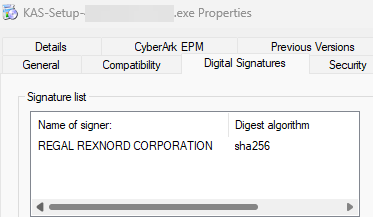
Figure 1: Example: KAS Setup Properties Digital Signature
Download
The latest version of the Kollmorgen Automation Suite is available from the Kollmorgen Developer Network here: KAS IDE Distribution.
-
- This is a restricted site.
You must be given access based on having purchased KAS.
If you do not have access, contact Support and Services.
Procedure
- Open the KAS IDE Distribution site.
- Login to the site.
- In the table, click the applicable Full or Small Installer link.
The file starts downloading. - When the download is completed, continue with the KAS-IDE Installation.
KAS-IDE Installation
-
-
Installation of the KAS-IDE can require you to change your firewall setting.
If you do not have sufficient privileges to configure your firewall, you must stop the relevant Windows Service.
-
-
- Adding the KAS-IDE application as an exception in your firewall settings is recommended to avoid security issues.
- See the FAQ entry How can I fix security issues? about firewall recommendations.
- See the FAQ entry Can I install more than one version of the KAS-IDE? about multiple installations.
Procedure
- On the computer, locate the folder where the EXE file was downloaded to.
- Double-click the EXE file.
The Kollmorgen Automation Suite Setup starts loading.The Verified Publisher in the installation wizard dialog must be REGAL REXNORD CORPORATION.
- Wait for the setup splash screen to vanish after being displayed.
The Kollmorgen Automation Suite Setup wizard starts.
The Welcome window opens showing the version number of the KAS-IDE. (Figure 2) - Click Next.
The License Agreement window opens. (Figure 3) - Review the License Agreement and click I Agree.
You must accept the agreement to install KAS.
- From the drop-down menu, verify the Development Environment installation type is selected.
- Click Next.
The Choose Users window opens. (Figure 5) - Select either:
- Install for all users (Requires Administrative Privileges)
- Install for current logged-in user (No Administrative Privileges Required)
-
-
Kollmorgen recommends installing for All Users if this is a first time KAS-IDE installation on the computer.
-
-
The KAS-IDE software requires these Windows components to be installed on your system:
- .NET Framework 4.8.1 Runtime
- WebView2 Runtime
If these components are not already installed, the installer prompts you to install them.
Administrative privileges may be required for the initial installation of these components.
- Click Next.
The Choose Install Location window opens. (Figure 6) - Accept the recommended default location.
Option: Click Browse to specify a custom install directory. -
-
Kollmorgen does not support non-ASCII characters in the install location path.
If these characters exist in the path, you must specify a different installation directory.
-
-
Kollmorgen recommends accepting the default destination folder:
- For the All Users option, the location is here:
- C:\Program Files\Kollmorgen\Kollmorgen Automation Suite\Kollmorgen Automation Suite <<KAS-VERSION-ID>>.
- For the Current User option, the location is here:
- C:\Users\{{user.name}}\AppData\Local\Kollmorgen\Kollmorgen Automation Suite <<KAS-VERSION-ID>>.
- For the All Users option, the location is here:
- Click Next.
The Choose Start Menu Folder window opens. (Figure 7) - Accept the recommended default folder name.
Option: Edit the text to specify a custom folder name. - Click Install.
KAS-IDE is installed in the designated install location.- If WebView2 is not installed, the Figure 8 message appears.
- Continue with WebView2 Installation.
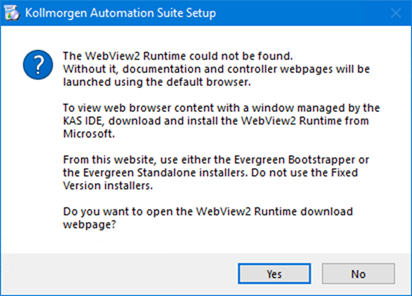
Figure 8: WebView2 Confirmation message
- Click Finish to close the wizard and open the Release Notes.
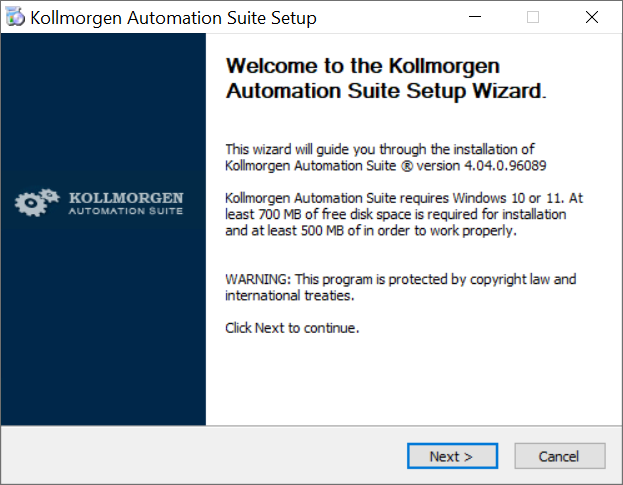
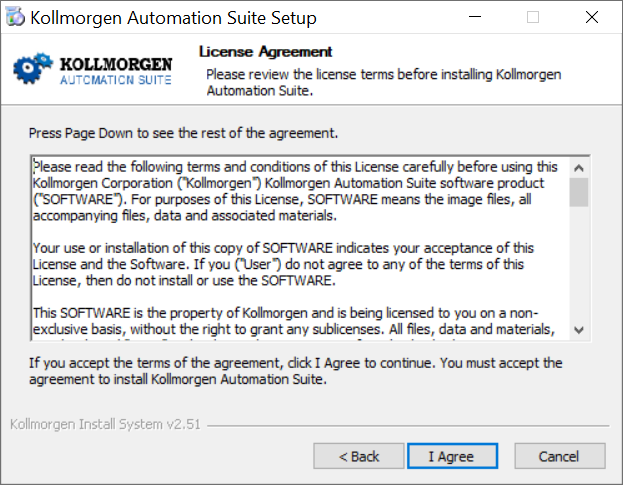
Figure 3: License Agreement window
The Choose Components window opens. (Figure 4)
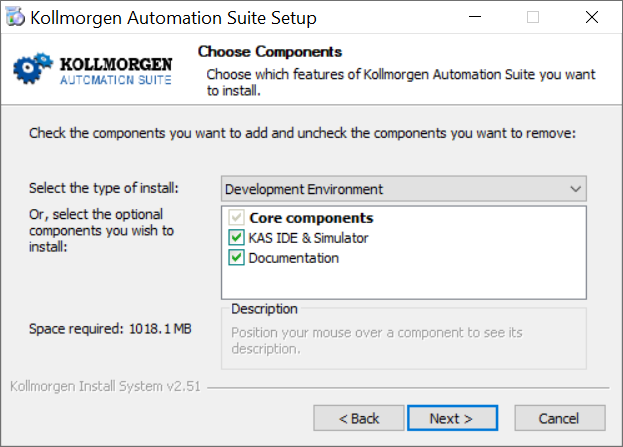
Figure 4: Choose Components window
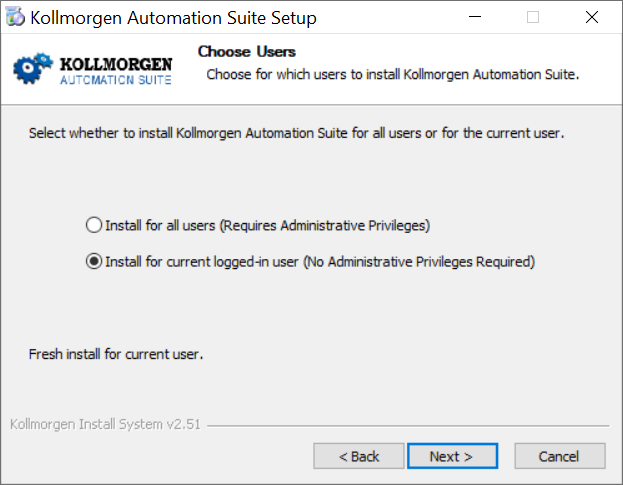
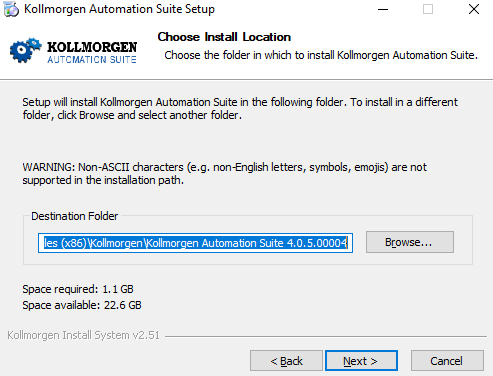
Figure 6: Choose Install Location window
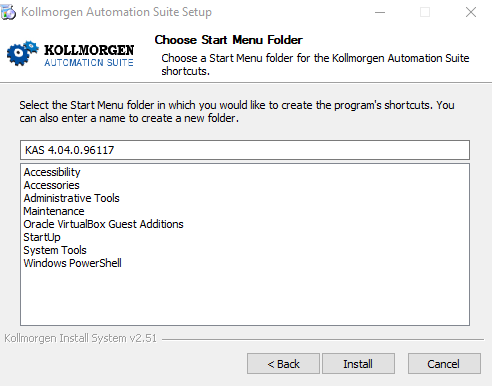
Figure 7: Choose Start Menu Folder window
When the installation is complete, the Completing KAS Setup window opens. (Figure 9)
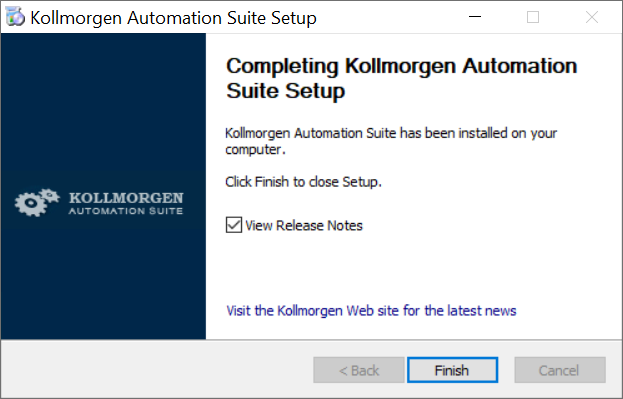
Figure 9: Completing KAS Setup window
WebView2 Installation
-
-
- The KAS software uses Microsoft WebView2 Runtime software to display the documentation and web server pages from the KAS-IDE.
Notes
- If Microsoft WebView2 is NOT installed, the KAS-IDE installer prompts the user to download and install it from the Microsoft website here: Microsoft Edge WebView2 Runtime software.
- Use either the Evergreen Bootstrapper or the Evergreen Standalone installers.
- Do not use the Fixed version installers!
- The user must follow the provided link to install WebView2 to view the documentation and access the web server from the KAS-IDE.
Procedure
- Click Yes.
The Download area of the Microsoft Edge WebView2 website opens.- Use either the Evergreen Bootstrapper or the Evergreen Standalone installers.
- Do not use the Fixed version installers!
- Use either the Evergreen Bootstrapper or the Evergreen Standalone installers.
- Download the applicable Evergreen installer.
- Click the Accept and Download link to the license terms and download the software.
- Locate and install the MicrosoftEdgeWebview2Setup.exe file.
Wait until the installation process is complete.
User Data
- User-generated data (e.g., log files, project sources, field bus configurations, function blocks, etc.) are stored in the Windows® User directory and are maintained between installations.
- This applies to files on AKD PDMMs, PCMMs,PCMM2G, and Simulator files.
Additional Literature
|
Description |
|
|---|---|
|
Release Notes |
The KAS Release Notes contain a summary of:
|
|
Contains these main steps to get the KAS system up and running.
|
|
|
30 Minutes to Motion |
Contains the main topics to get started quickly with KAS-IDE. The objective is to familiarize you with the basic principles and the way the program works by creating a simple motion application project.
See KAS IDE 30 Minutes to Motion EN about:
|
|
Contains content to help with KAS-IDE except the topics included in the Reference Manuals. |
|
|
Contains Technical References on PLC Programming Languages and Library. |
|
|
KAS-IDE Motion Library Reference Manual |
Contains Technical References on Motion Library for Pipe Network and PLCopen. |


