PDO Selection/Mapping tab
Use this tab to:
This tab includes the PDO configurations for an EtherCAT device. (Figure 1)
- Assigned PDOs and their objects are viewable for the Inputs (Tx) and Outputs (Rx).
- The PDOs are active when the EtherCAT network is initialized to operation mode.
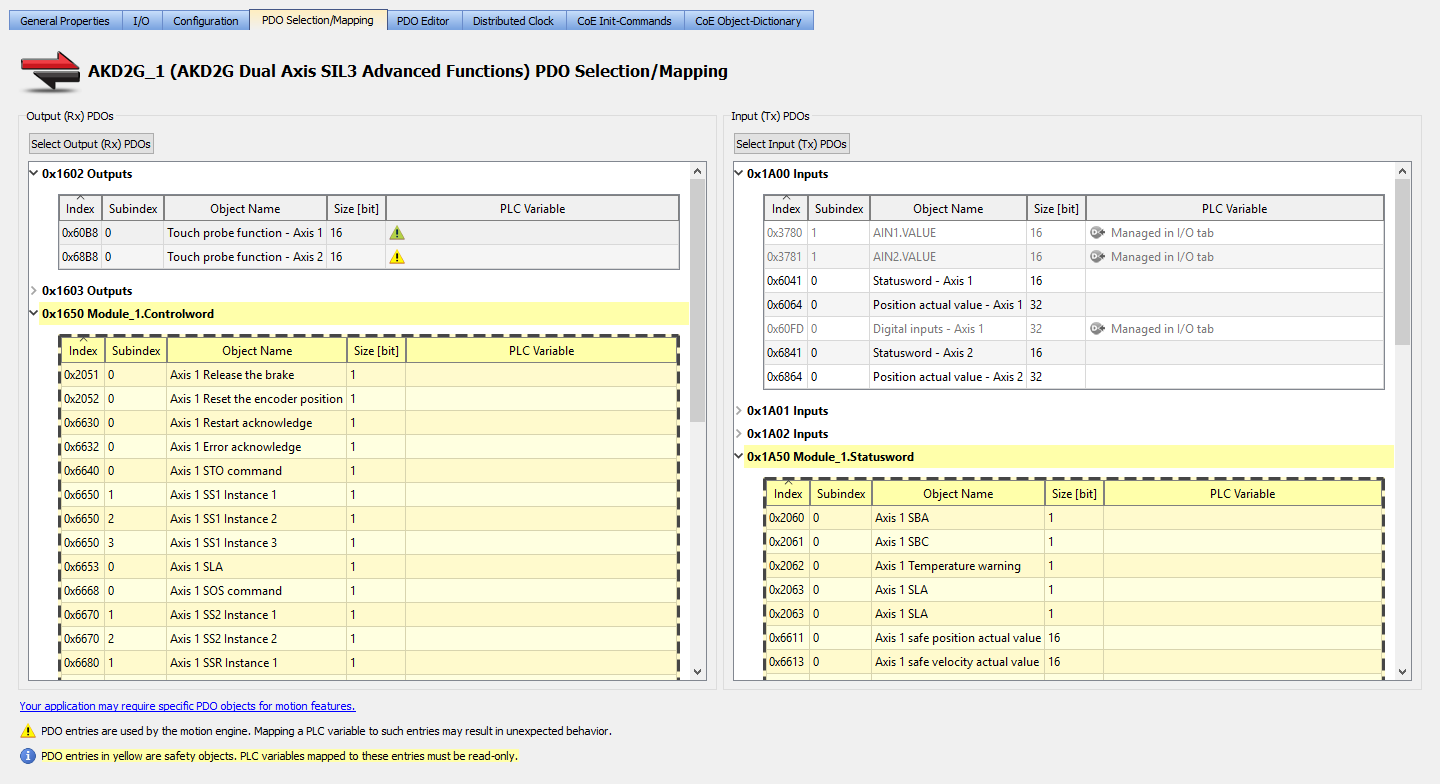
Figure 1: PDO Selection/Mapping tab with FSoE objects (in yellow).
-
-
- Safety PDOs are highlighted in yellow with a border.
- Any variable assigned to a FSoE PDO must be Read Only.
- See Set Up a Variable to Monitor Safety Data.
Each assigned PDO is listed by its Index (hex) and Name. (Figure 2)
- The objects associated with each PDO are listed below the name.
- The objects are identified by their object dictionary Index and Subindex.
- The Object Name provides a simple description.
- The Size determines the data length.
- The PLC Variable mapped to the PDO objects is listed.
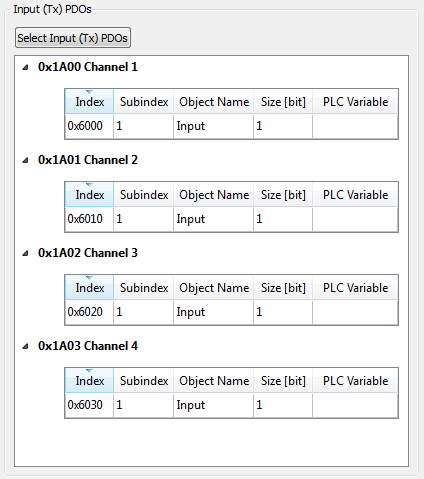
Figure 2: Example: Listed Input (Tx) PDOs
Map PLC Variable to PDO Object
PLC variables can be mapped to PDO objects by:
- Double-click in a PLC variable cell to open the PLC Variable Selector dialog box.
- The PLC Variable Selector dialog box is used to filter the variables to show only those variables compatible with the size of the selected PDO object.
- Mapping to variables within a structure instance is supported.
- Mapping to either array variables or array variables within structure instance is not supported.
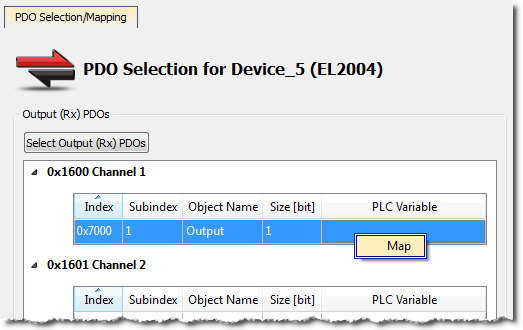
- Right-click in a PLC variable cell and select Map. (Figure 3)
- Drag-and-drop a variable from the Dictionary to a PLC variable cell.
- Multiple objects may be selected by:
- <Shift-click> a contiguous range of objects.
- <Ctrl-click> non-contiguous objects.
- Do not map PLC variables to third-party drive PDO objects.
- They may conflict with the KAS Runtime's internal motion engine read/write operations.
 Special information regarding mapping PLC variables to safety objects
PLC variables may be mapped to safety objects in exactly the same way as any other object, but the variable must be set as Read-only.
- The PLC Variable Selector shows only Read-only variables. (Figure 4)
- Variables created by clicking the Create PLC Variable button, when accessed from a safety PDO, are automatically set to Read-only.
- There is no warning if an assigned variable is changed to Read / Write.
- An error is reported when the project is compiled.
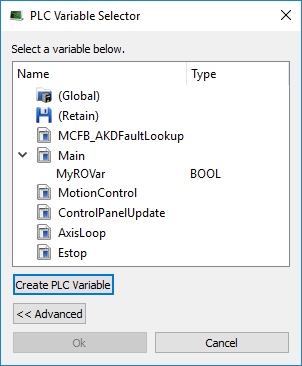
Figure 4: PLC Variable Selector dialog box
What happens to variables that are mapped to a device PDO which was removed using the ECATDeviceAction function block?
When an device is removed using ECATDeviceAction, what happens to variables depends on what they are mapped to.
- Variable mapped to an Input (Tx) PDO object
- The value of the variable becomes 0 (zero) when the mapped device is removed.
- The device PDO object is automatically reconnected to the variable when the device is reconnected to the network.
- Variable mapped to an Output (Rx) object
- The link to the device PDO is removed when the mapped device is removed.
- When the device is reconnected, the PDO object is automatically reconnected to the variable.
See Map Input and Output to Variables.
Select Input and Output PDOs
Press the Select Input (Tx) PDOs or Select Output (Rx) PDOs button to choose the Input or Output PDOs.
The appropriate dialog box opens. (Figure 5)
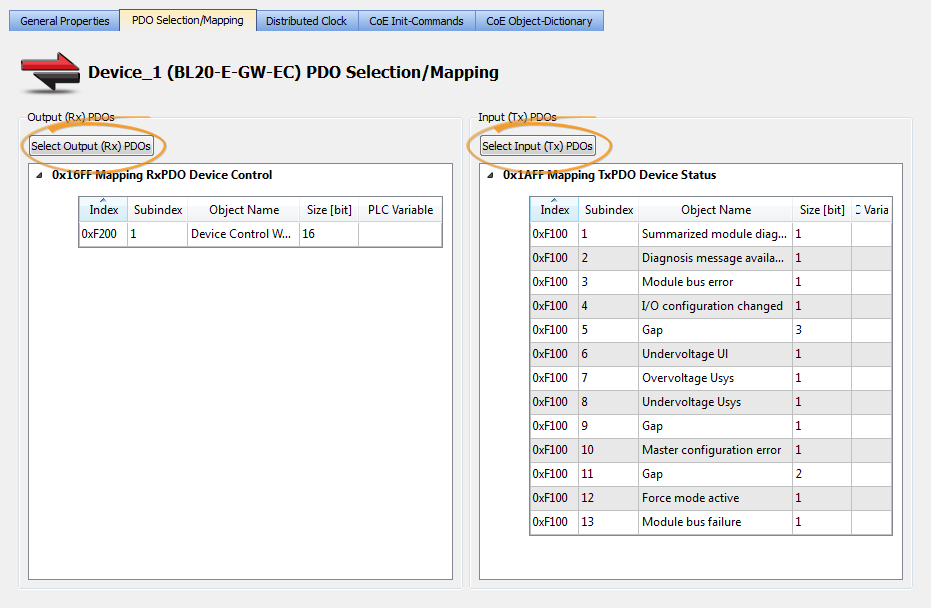
Figure 5: Example: PDO Selection/Mapping tab
- The upper portion contains check boxes to select specific PDOs for the EtherCAT network cyclic data.
- The lower portion contains the list of objects included within a specific PDO.
View the Contents of a PDO
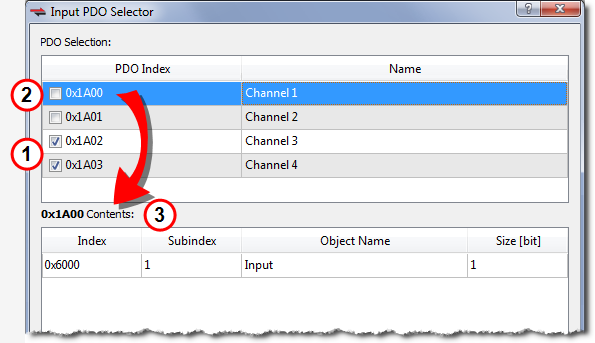
Click a row in the upper portion of the PDO Selector dialog box to view the contents of that PDO.
- The lower portion is updated to list the associated objects.
- Example: The PDOs 0x1A02 and 0x1A03 are selected for the input objects but the contents for PDO 0x1A00 are listed because that row is selected. (Figure 6)
|
|
|
Notes
- Some EtherCAT devices may not have selectable input and/or output PDOs.
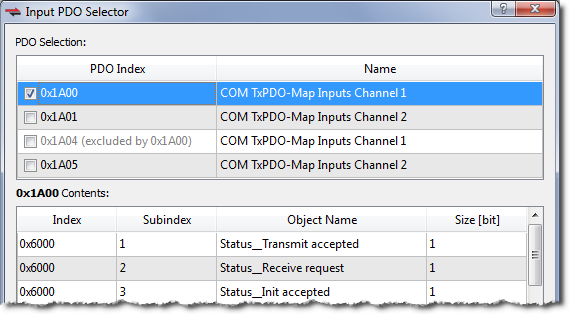
- Some PDOs allow you to select more than one PDO at a time while others are exclusive.
- Exclusive PDOs prevent simultaneously selecting certain other PDOs.
- Example: Choosing PDO 0x1A00 excludes selecting PDO 0x1A04: (Figure 7)
- Device vendors determine the PDOs, content and possible selection exclusivity.
- This information is defined inside the device vendor's ESI file.
- Contact your local Kollmorgen representative for more information about the drive.


