Create a Method
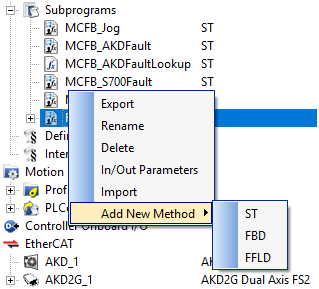
- In the Project Explorer > Subprograms section, right-click a UDFB.
The context menu appears. - Select Add New Method.
- Select an implementation language: (Figure 1)
- Structured Text (ST)
- Function Block Diagram (FBD)
- Ladder Diagram (FFLD)
- Enter a method name. (Figure 2)
- Click OK to save the changes or selections and close the dialog box.
The Properties dialog box opens. (Figure 3) - Define the method's Inputs and Outputs parameters in their respective text boxes.
The Properties dialog box looks similar to Figure 4 - Click OK to save the changes or selections and close the dialog box.
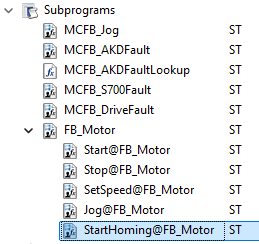
The new method is created as a child object under the parent UDFB in the Project Explorer. (Figure 5) - Continue with Define Method Parameters.
The New UDFB dialog box opens.
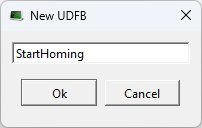
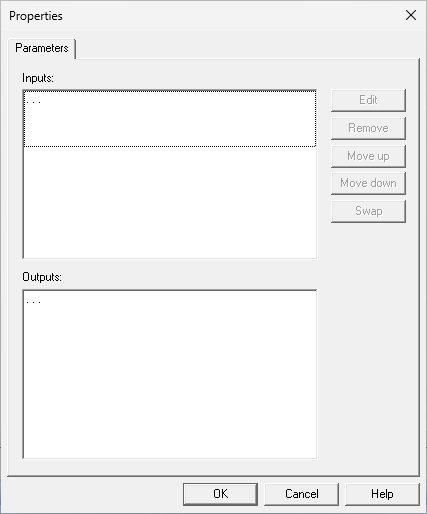
Figure 3: Properties dialog box
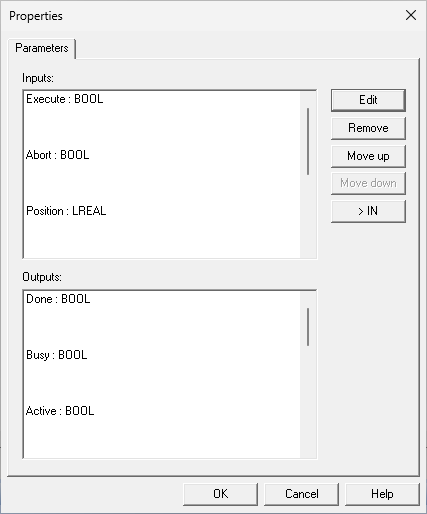
Figure 4: Example: Completed Properties dialog box
See Also
- Call a Method
- Debug a Method
- Delete a Method
- Import or Export Methods
- Method Best Practices
- Method Restrictions
- Rename a Method
The program editor for the new Method opens automatically, allowing you to implement the logic.
-
-
- Naming Guidelines
- Use verb-based names (e.g., StartPump, ResetAlarm).
- Avoid generic names (e.g., Action1, Program 1).
- Match the naming conventions used for programs and function blocks.
- Naming Guidelines
Example: Project Explorer
Subprograms
9 MotionAxisController (UDFB)
9 ValidateParameters (Method)
9 ExecuteMoveProfile (Method)
9 MonitorAxisFaults (Method)
9 GenerateDiagnosticInfo (Method)


